VoltRN CLI (React Native/Expo project dynamic boilerplate)
A powerful CLI tool to quickly scaffold React Native and Expo TypeScript projects with best practices.
- ✅ React Native CLI or Expo support
- ✅ Full TypeScript configuration with strict mode
- ✅ React Navigation or Expo Router
- ✅ i18n support with react-i18next and MMKV storage
- ✅ NEW: Complete authentication flow with JWT tokens
- ✅ Environment management (dev/staging/prod)
- ✅ Path aliases for clean imports
- ✅ Splash screen with react-native-bootsplash (auto-hide)
- ✅ App icon generation with @forward-software/react-native-toolbox
- ✅ Example screens with best practices
- ✅ Ready-to-use project structure
Before installing the CLI, make sure you have the following installed:
- Node.js (v22 or higher recommended)
- npm (v6 or higher) or yarn
- For React Native CLI projects: Xcode (macOS) and Android Studio (for Android development)
- For Expo projects: Expo CLI (optional, but recommended)
Method 1: Using npx (Recommended) ⭐
The easiest way to use the CLI is with npx, which downloads and runs the latest version without installing it globally:
npx create-voltrn-boilerplate
This method:
- ✅ Always uses the latest version
- ✅ No global installation needed
- ✅ Keeps your system clean
- ✅ Works immediately
Method 2: Global Installation
Install the CLI globally to use it from anywhere:
npm install -g create-voltrn-boilerplate
After installation, you can run:
create-voltrn-boilerplate
Note: On macOS/Linux, you might need to use sudo:
sudo npm install -g create-voltrn-boilerplate
If you prefer Yarn:
# Global installation
yarn global add create-voltrn-boilerplate

# Or use with yarn create
yarn create voltrn-boilerplate
To verify the CLI is installed correctly:
# If installed globally
create-voltrn-boilerplate --version

# Or check if the command exists
which create-voltrn-boilerplate
If you installed globally, update to the latest version:
npm update -g create-voltrn-boilerplate
Or reinstall:
npm install -g create-voltrn-boilerplate@latest
To remove the globally installed CLI:
npm uninstall -g create-voltrn-boilerplate
Permission Errors (macOS/Linux)
If you encounter permission errors during global installation:
# Option 1: Use sudo (not recommended for security reasons)
sudo npm install -g create-voltrn-boilerplate

# Option 2: Fix npm permissions (recommended)
mkdir ~/.npm-global
npm config set prefix '~/.npm-global'
export PATH=~/.npm-global/bin:$PATH
# Add the export line to your ~/.zshrc or ~/.bashrc
If the command is not found after installation:
-
Check if npm's global bin directory is in your PATH:
-
Add it to your PATH (add to ~/.zshrc or ~/.bashrc):
export PATH="$(npm config get prefix)/bin:$PATH"
-
Restart your terminal or run:
source ~/.zshrc # or source ~/.bashrc
If you continue having issues with global installation, just use npx - it works without any setup:
npx create-voltrn-boilerplate
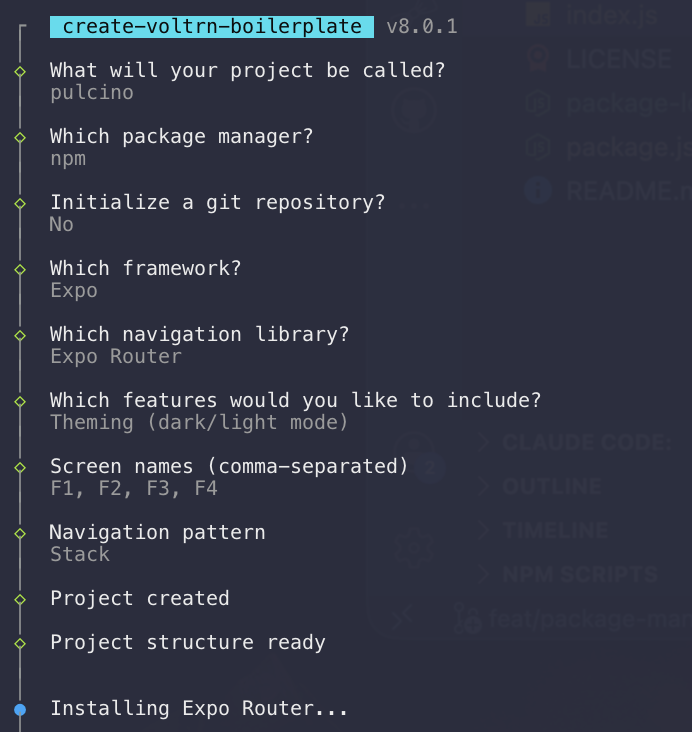
Run the CLI and follow the interactive prompts:
npx create-voltrn-boilerplate
You'll be asked:
- Project name - Enter your project name
- Framework - Choose between React Native CLI or Expo
- Navigation - Choose React Navigation or Expo Router (Expo only)
- i18n - Enable internationalization support
- Authentication - Enable JWT-based auth flow
- Theming - Enable dark/light mode support
- Screen names - Define your own screen names (comma-separated)
- Navigation pattern - Choose how screens are organized (non-auth only)
You can fully customize the screens generated in your project. Enter screen names as a comma-separated list (e.g., Home, Profile, Settings, About). Names are automatically converted to PascalCase.
Navigation Patterns (without auth flow)
When not using the authentication flow, you can choose from 4 navigation patterns and assign each screen to a specific navigator:
| Pattern |
Description |
| Stack |
Simple linear navigation with back/forward buttons |
| Bottom Tabs |
Tab bar at the bottom; each screen can go in a Tab or Stack |
| Drawer |
Side menu navigation; each screen can go in the Drawer or Stack |
| Tabs + Drawer |
Combined tab bar and side menu; each screen can go in Tab, Drawer, or Stack |
For Tabs, Drawer, and Tabs + Drawer patterns, the CLI asks where each screen should go, so you can mix and match freely.
Screen Configuration with Auth Flow
When the authentication flow is enabled, screens are organized into three categories:
- Public screens (default:
PublicHome) - Accessible before login
- Private tab screens (default:
PrivateHome, Profile, Settings) - Main app screens shown as bottom tabs after login
- Private stack screens (default:
Details) - Detail/modal screens accessible from tabs
The auth flow always includes Intro and Login as fixed screens.
When you enable i18n support, the CLI will set up:
- ✅ i18next with React Native integration
- ✅ MMKV storage for language persistence
- ✅ Language detector that uses device settings
- ✅ English and Italian translations included by default
⚠️ Important for Expo Projects
Since i18n uses react-native-mmkv which requires native code, Expo projects need to run:
before starting the app. This generates the necessary native code for MMKV to work correctly.
After prebuild, you can start the app normally:
Authentication Flow Feature
When you enable the authentication flow, the CLI will set up:
The authentication flow example uses the Platzi Fake Store API as a demo backend. This is a free, public API that provides JWT-based authentication out of the box, making it ideal for testing the auth flow without setting up your own server.
Default login credentials for the example:
Email:    john@mail.com
Password: changeme
To connect to your own API, update the configuration in src/env/env.js:
export default {
  API_URL: "https://your-api.com",
  ENVIRONMENT: "development"
};
Expected endpoints:
POST /v1/auth/login - Returns { access_token, refresh_token }POST /v1/auth/refresh-token - Refreshes tokens
Generated projects with auth flow include a README.md with complete authentication documentation.
your-project/
├── src/
│   ├── screens/           # Screen components
│   ├── components/        # Reusable components
│   ├── i18n/             # Internationalization
│   ├── mmkv/             # MMKV storage setup
│   ├── auth/             # Auth client (if enabled)
│   ├── hooks/            # Custom hooks (if auth enabled)
│   ├── navigators/       # Navigation setup (if auth enabled)
│   └── env/              # Environment config
├── navigation.d.ts       # Navigation types
└── app.json             # Environment configurations
Environment Configuration
Environment variables are stored in .env.* files using standard KEY=VALUE format:
.env.development -Development environment.env.staging -Staging environment.env.production -Production environment.env.example -Template with required keys (committed to git)
All .env.* files (except .env.example) are gitignored to keep sensitive values out of version control.
Use the following npm scripts to switch between environments:
npm run env:dev      # Development
npm run env:stage    # Staging
npm run env:prod     # Production
This reads the corresponding .env.* file and generates src/env/env.js (also gitignored), which is imported via the @env/env path alias.
import env from '@env/env';

const apiUrl = env.API_URL;
const environment = env.ENVIRONMENT;
- Add the new variable to each
.env.* file:
# .env.development
API_URL=https://dev-api.example.com
API_KEY=dev-api-key
ENVIRONMENT=development
FEATURE_FLAG=true
- Add the key (without a real value) to
.env.example so other developers know it's required:
# .env.example
API_URL=
API_KEY=
ENVIRONMENT=
FEATURE_FLAG=
- Regenerate
env.js:
- Use the new variable:
import env from '@env/env';

const featureEnabled = env.FEATURE_FLAG;
- ⚠️ Do not commit sensitive data -
.env.* files are gitignored; use .env.example to document required keys
- ⚠️ Do not edit
src/env/env.js manually -it is generated and will be overwritten
- ✅ Always run the appropriate
env:* script before building for a specific environment
The @env/ path alias is configured in babel.config.js and tsconfig.json, allowing you to import from @env/env instead of using relative paths like ../../env/env.
Splash Screen & App Icons
Every generated project includes automatic splash screen and app icon setup:
A default VoltRN placeholder logo is included so the project works out of the box.
Customizing in Generated Projects
- Replace
assets/splashscreen.svg (or .png) with your own logo
- SVG recommended for best quality at all densities
- If using PNG: minimum 1024x1024px
- Run:
Customization flags:
| Flag |
Description |
Default |
--background |
Background color (hex) |
1A1A2E |
--logo-width |
Logo width at @1x in dp |
150 |
--platforms |
Target platforms |
android,ios |
--dark-background |
Dark mode background (license key required) |
- |
--dark-logo |
Dark mode logo path (license key required) |
- |
- Replace
assets/icon.png with your own image (PNG format, minimum 1024x1024px)
- Run:
This generates all required sizes for both iOS and Android automatically.
This project is licensed under the Mozilla Public License 2.0. See the LICENSE file for details.


