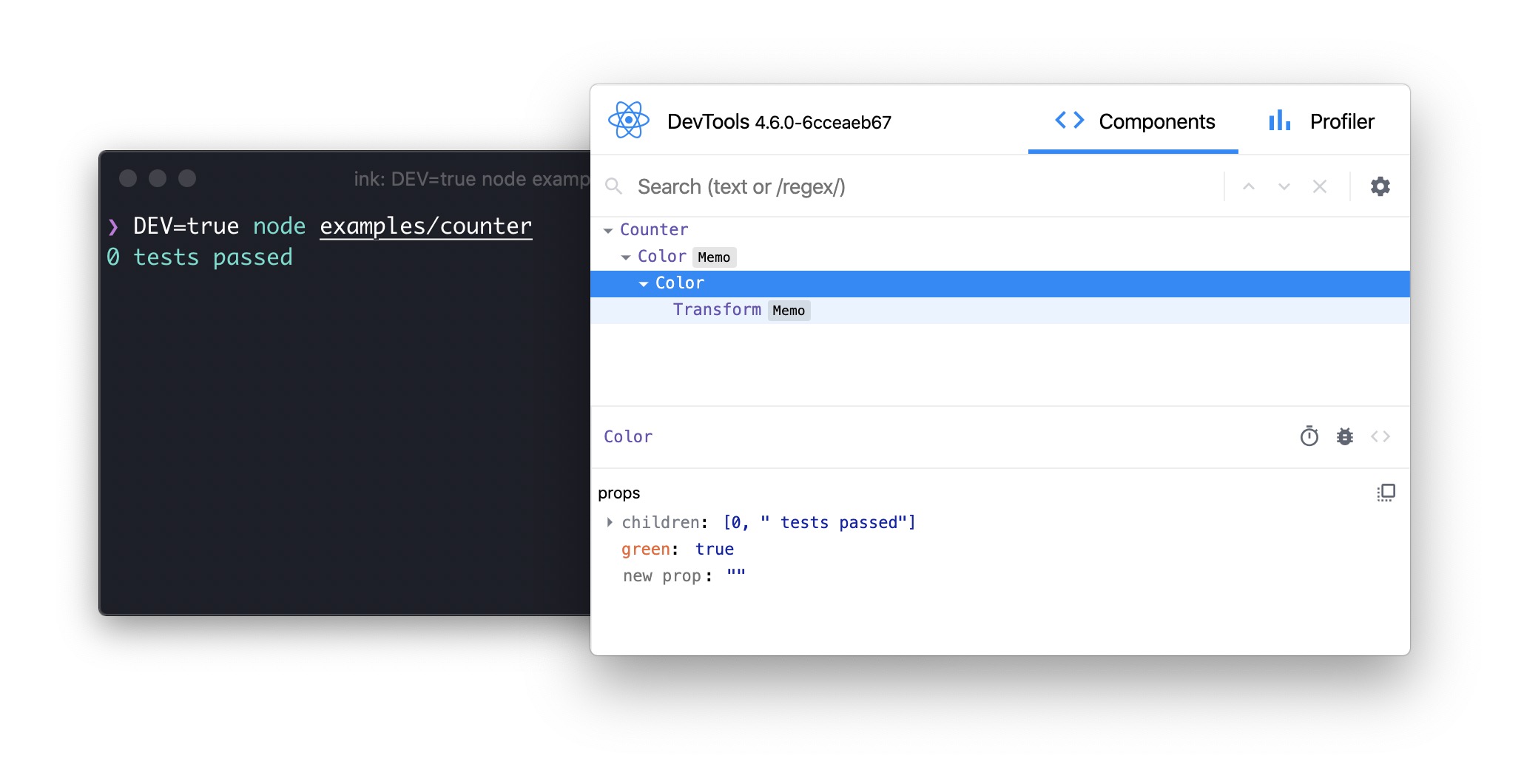
React for CLIs. Build and test your CLI output using components.


Ink provides the same component-based UI building experience that React offers in the browser, but for command-line apps.
It uses Yoga to build Flexbox layouts in the terminal, so most CSS-like properties are available in Ink as well.
If you are already familiar with React, you already know Ink.
Since Ink is a React renderer, all features of React are supported.
Head over to the React website for documentation on how to use it.
Only Ink's methods are documented in this readme.
Fully AI-generated pull requests are not accepted. You can use AI, but should be verified and cleaned up by a human. Only Opus 4.6+ (high-effort) and Codex 5.4+ (extra high) are accepted models. Preferably created with Opus and verified by Codex.
Note
This readme documents the upcoming version of Ink. For the latest stable release, see Ink on npm.
import React, {useState, useEffect} from 'react';
import {render, Text} from 'ink';

const Counter = () => {
	const [counter, setCounter] = useState(0);

	useEffect(() => {
		const timer = setInterval(() => {
			setCounter(previousCounter => previousCounter + 1);
		}, 100);

		return () => {
			clearInterval(timer);
		};
	}, []);

	return <Text color="green">{counter} tests passed</Text>;
};

render(<Counter />);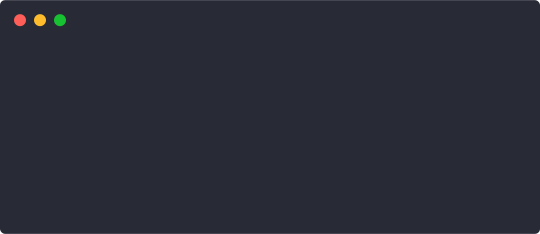
- Claude Code - An agentic coding tool made by Anthropic.
- Gemini CLI - An agentic coding tool made by Google.
- GitHub Copilot CLI - Just say what you want the shell to do.
- Canva CLI - CLI for creating and managing Canva Apps.
- Cloudflare's Wrangler - The CLI for Cloudflare Workers.
- Linear - Linear built an internal CLI for managing deployments, configs, and other housekeeping tasks.
- Gatsby - Gatsby is a modern web framework for blazing-fast websites.
- tap - A Test-Anything-Protocol library for JavaScript.
- Terraform CDK - Cloud Development Kit (CDK) for HashiCorp Terraform.
- Specify CLI - Automate the distribution of your design tokens.
- Twilio's SIGNAL - CLI for Twilio's SIGNAL conference. Blog post.
- Typewriter - Generates strongly-typed Segment analytics clients from arbitrary JSON Schema.
- Prisma - The unified data layer for modern applications.
- Blitz - The Fullstack React Framework.
- New York Times - NYT uses Ink's
kyt - a toolkit that encapsulates and manages the configuration for web apps.
- tink - A next-generation runtime and package manager.
- Inkle - A Wordle game.
- loki - Visual regression testing tool for Storybook.
- Bit - Build, distribute, and collaborate on components.
- Remirror - Your friendly, world-class editor toolkit.
- Prime - Open-source GraphQL CMS.
- emoj - Find relevant emojis.
- emma - Find and install npm packages easily.
- npm-check-extras - Check for outdated and unused dependencies, and run update/delete actions on selected ones.
- swiff - Multi-environment command-line tools for time-saving web developers.
- share - Share files quickly.
- Kubelive - A CLI for Kubernetes that provides live data about the cluster and its resources.
- changelog-view - View changelogs.
- cfpush - Interactive Cloud Foundry tutorial.
- startd - Turn your React component into a web app.
- wiki-cli - Search Wikipedia and read article summaries.
- garson - Build interactive, config-based command-line interfaces.
- git-contrib-calendar - Display a contributions calendar for any Git repository.
- gitgud - Interactive command-line GUI for Git.
- Autarky - Find and delete old
node_modules directories to free up disk space.
- fast-cli - Test your download and upload speeds.
- tasuku - Minimal task runner.
- mnswpr - A Minesweeper game.
- lrn - Learning by repetition.
- turdle - A Wordle game.
- Shopify CLI - Build apps, themes, and storefronts for the Shopify platform.
- ToDesktop CLI - All-in-one platform for building Electron apps.
- Walle - A full-featured crypto wallet for EVM networks.
- Sudoku - A Sudoku game.
- Sea Trader - A Taipan!-inspired trading simulator game.
- srtd - Live-reloading SQL templates for Supabase projects.
- tweakcc - Customize your Claude Code styling.
- argonaut - Manage Argo CD resources.
- Qodo Command - Build, run, and manage AI agents.
- Nanocoder - A community-built, local-first AI coding agent with multi-provider support.
- dev3000 - An AI agent MCP orchestrator and developer browser.
- Neovate Code - An agentic coding tool made by AntGroup.
- instagram-cli - Instagram client.
- ElevenLabs CLI - ElevenLabs agents client.
- SSH AI Chat - Chat with AI over SSH.
- Deep Code CLI - AI coding assistant optimized for the DeepSeek model.
(PRs welcome. Append new entries at the end. Repos must have 100+ stars and showcase Ink beyond a basic list picker.)
Use create-ink-app to quickly scaffold a new Ink-based CLI.
npx create-ink-app my-ink-cli
Alternatively, create a TypeScript project:
npx create-ink-app --typescript my-ink-cli
Manual JavaScript setup
Ink requires the same Babel setup as you would do for regular React-based apps in the browser.
Set up Babel with a React preset to ensure all examples in this readme work as expected.
After installing Babel, install @babel/preset-react and insert the following configuration in babel.config.json:
npm install --save-dev @babel/preset-react
{
	"presets": ["@babel/preset-react"]
}
Next, create a file source.js, where you'll type code that uses Ink:
import React from 'react';
import {render, Text} from 'ink';

const Demo = () => <Text>Hello World</Text>;

render(<Demo />);
Then, transpile this file with Babel:
npx babel source.js -o cli.js
Now you can run cli.js with Node.js:
If you don't like transpiling files during development, you can use import-jsx or @esbuild-kit/esm-loader to import a JSX file and transpile it on the fly.
Ink uses Yoga, a Flexbox layout engine, to build great user interfaces for your CLIs using familiar CSS-like properties you've used when building apps for the browser.
It's important to remember that each element is a Flexbox container.
Think of it as if every <div> in the browser had display: flex.
See <Box> built-in component below for documentation on how to use Flexbox layouts in Ink.
Note that all text must be wrapped in a <Text> component.
An Ink app is a Node.js process, so it stays alive only while there is active work in the event loop (timers, pending promises, useInput listening on stdin, etc.). If your component tree has no async work, the app will render once and exit immediately.
To exit the app, press Ctrl+C (enabled by default via exitOnCtrlC), call exit() from useApp inside a component, or call unmount() on the object returned by render().
Use waitUntilExit() to run code after the app is unmounted:
const {waitUntilExit} = render(<MyApp />);

await waitUntilExit();

console.log('App exited');This component can display text and change its style to make it bold, underlined, italic, or strikethrough.
import {render, Text} from 'ink';

const Example = () => (
	<>
		<Text color="green">I am green</Text>
		<Text color="black" backgroundColor="white">
			I am black on white
		</Text>
		<Text color="#ffffff">I am white</Text>
		<Text bold>I am bold</Text>
		<Text italic>I am italic</Text>
		<Text underline>I am underline</Text>
		<Text strikethrough>I am strikethrough</Text>
		<Text inverse>I am inversed</Text>
	</>
);

render(<Example />);
Note
<Text> allows only text nodes and nested <Text> components inside of it. For example, <Box> component can't be used inside <Text>.
Type: string
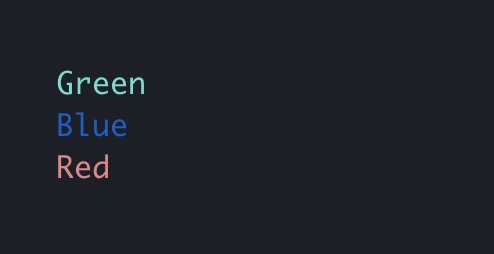
Change text color.
Ink uses chalk under the hood, so all its functionality is supported.
<Text color="green">Green</Text>
<Text color="#005cc5">Blue</Text>
<Text color="rgb(232, 131, 136)">Red</Text>
Type: string
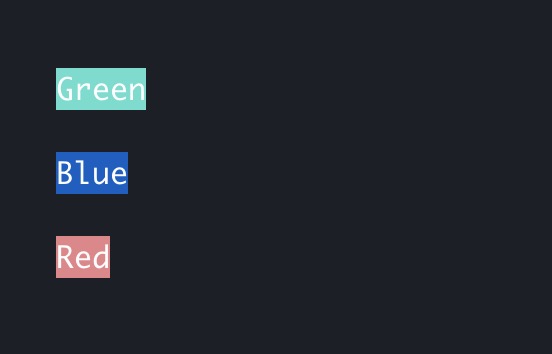
Same as color above, but for background.
<Text backgroundColor="green" color="white">Green</Text>
<Text backgroundColor="#005cc5" color="white">Blue</Text>
<Text backgroundColor="rgb(232, 131, 136)" color="white">Red</Text>
Type: boolean
Default: false
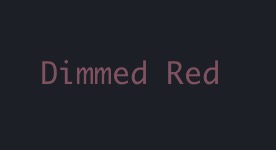
Dim the color (make it less bright).
<Text color="red" dimColor>
	Dimmed Red
</Text>
Type: boolean
Default: false
Make the text bold.
Type: boolean
Default: false
Make the text italic.
Type: boolean
Default: false
Make the text underlined.
Type: boolean
Default: false
Make the text crossed with a line.
Type: boolean
Default: false
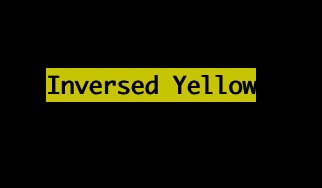
Invert background and foreground colors.
<Text inverse color="yellow">
	Inversed Yellow
</Text>
Type: string
Allowed values: wrap hard truncate truncate-start truncate-middle truncate-end
Default: wrap
This property tells Ink to wrap or truncate text if its width is larger than the container.
If wrap is passed (the default), Ink will wrap text and split it into multiple lines.
If hard is passed, Ink will fill each line to the full column width, breaking words as necessary.
If truncate-* is passed, Ink will truncate text instead, resulting in one line of text with the rest cut off.
<Box width={7}>
	<Text>Hello World</Text>
</Box>
//=> 'Hello\nWorld'

<Box width={7}>
	<Text wrap="hard">Hello World</Text>
</Box>
//=> 'Hello W\norld'

// `truncate` is an alias to `truncate-end`
<Box width={7}>
	<Text wrap="truncate">Hello World</Text>
</Box>
//=> 'Hello…'

<Box width={7}>
	<Text wrap="truncate-middle">Hello World</Text>
</Box>
//=> 'He…ld'

<Box width={7}>
	<Text wrap="truncate-start">Hello World</Text>
</Box>
//=> '…World'
<Box> is an essential Ink component to build your layout.
It's like <div style="display: flex"> in the browser.
import {render, Box, Text} from 'ink';

const Example = () => (
	<Box margin={2}>
		<Text>This is a box with margin</Text>
	</Box>
);

render(<Example />);Type: number string
Width of the element in spaces.
You can also set it as a percentage, which will calculate the width based on the width of the parent element.
<Box width={4}>
	<Text>X</Text>
</Box>
//=> 'X '<Box width={10}>
<Box width="50%">
<Text>X</Text>
</Box>
<Text>Y</Text>
</Box>
//=> 'X Y'Type: number string
Height of the element in lines (rows).
You can also set it as a percentage, which will calculate the height based on the height of the parent element.
<Box height={4}>
	<Text>X</Text>
</Box>
//=> 'X\n\n\n'<Box height={6} flexDirection="column">
<Box height="50%">
<Text>X</Text>
</Box>
<Text>Y</Text>
</Box>
//=> 'X\n\n\nY\n\n'Type: number
Sets a minimum width of the element.
Percentages aren't supported yet; see react/yoga#872.
Type: number string
Sets a minimum height of the element in lines (rows).
You can also set it as a percentage, which will calculate the minimum height based on the height of the parent element.
Type: number
Sets a maximum width of the element.
Percentages aren't supported yet; see react/yoga#872.
Type: number string
Sets a maximum height of the element in lines (rows).
You can also set it as a percentage, which will calculate the maximum height based on the height of the parent element.
Type: number
Defines the aspect ratio (width/height) for the element.
Use it with at least one size constraint (width, height, minHeight, or maxHeight) so Ink can derive the missing dimension.
Type: number
Default: 0
Top padding.
Type: number
Default: 0
Bottom padding.
Type: number
Default: 0
Left padding.
Type: number
Default: 0
Right padding.
Type: number
Default: 0
Horizontal padding. Equivalent to setting paddingLeft and paddingRight.
Type: number
Default: 0
Vertical padding. Equivalent to setting paddingTop and paddingBottom.
Type: number
Default: 0
Padding on all sides. Equivalent to setting paddingTop, paddingBottom, paddingLeft and paddingRight.
<Box paddingTop={2}><Text>Top</Text></Box>
<Box paddingBottom={2}><Text>Bottom</Text></Box>
<Box paddingLeft={2}><Text>Left</Text></Box>
<Box paddingRight={2}><Text>Right</Text></Box>
<Box paddingX={2}><Text>Left and right</Text></Box>
<Box paddingY={2}><Text>Top and bottom</Text></Box>
<Box padding={2}><Text>Top, bottom, left and right</Text></Box>Type: number
Default: 0
Top margin.
Type: number
Default: 0
Bottom margin.
Type: number
Default: 0
Left margin.
Type: number
Default: 0
Right margin.
Type: number
Default: 0
Horizontal margin. Equivalent to setting marginLeft and marginRight.
Type: number
Default: 0
Vertical margin. Equivalent to setting marginTop and marginBottom.
Type: number
Default: 0
Margin on all sides. Equivalent to setting marginTop, marginBottom, marginLeft and marginRight.
<Box marginTop={2}><Text>Top</Text></Box>
<Box marginBottom={2}><Text>Bottom</Text></Box>
<Box marginLeft={2}><Text>Left</Text></Box>
<Box marginRight={2}><Text>Right</Text></Box>
<Box marginX={2}><Text>Left and right</Text></Box>
<Box marginY={2}><Text>Top and bottom</Text></Box>
<Box margin={2}><Text>Top, bottom, left and right</Text></Box>Type: number
Default: 0
Size of the gap between an element's columns and rows. A shorthand for columnGap and rowGap.
<Box gap={1} width={3} flexWrap="wrap">
	<Text>A</Text>
	<Text>B</Text>
	<Text>C</Text>
</Box>
// A B
//
// CType: number
Default: 0
Size of the gap between an element's columns.
<Box columnGap={1}>
	<Text>A</Text>
	<Text>B</Text>
</Box>
// A BType: number
Default: 0
Size of the gap between an element's rows.
<Box flexDirection="column" rowGap={1}>
	<Text>A</Text>
	<Text>B</Text>
</Box>
// A
//
// BType: number
Default: 0
See flex-grow.
<Box>
	<Text>Label:</Text>
	<Box flexGrow={1}>
		<Text>Fills all remaining space</Text>
	</Box>
</Box>Type: number
Default: 1
See flex-shrink.
<Box width={20}>
	<Box flexShrink={2} width={10}>
		<Text>Will be 1/4</Text>
	</Box>
	<Box width={10}>
		<Text>Will be 3/4</Text>
	</Box>
</Box>Type: number string
See flex-basis.
<Box width={6}>
	<Box flexBasis={3}>
		<Text>X</Text>
	</Box>
	<Text>Y</Text>
</Box>
//=> 'X Y'<Box width={6}>
<Box flexBasis="50%">
<Text>X</Text>
</Box>
<Text>Y</Text>
</Box>
//=> 'X Y'Type: string
Allowed values: row row-reverse column column-reverse
See flex-direction.
<Box>
	<Box marginRight={1}>
		<Text>X</Text>
	</Box>
	<Text>Y</Text>
</Box>
// X Y

<Box flexDirection="row-reverse">
	<Text>X</Text>
	<Box marginRight={1}>
		<Text>Y</Text>
	</Box>
</Box>
// Y X

<Box flexDirection="column">
	<Text>X</Text>
	<Text>Y</Text>
</Box>
// X
// Y

<Box flexDirection="column-reverse">
	<Text>X</Text>
	<Text>Y</Text>
</Box>
// Y
// XType: string
Allowed values: nowrap wrap wrap-reverse
See flex-wrap.
<Box width={2} flexWrap="wrap">
	<Text>A</Text>
	<Text>BC</Text>
</Box>
// A
// B C<Box flexDirection="column" height={2} flexWrap="wrap">
<Text>A</Text>
<Text>B</Text>
<Text>C</Text>
</Box>
// A C
// BType: string
Allowed values: flex-start center flex-end stretch baseline
See align-items.
<Box alignItems="flex-start">
	<Box marginRight={1}>
		<Text>X</Text>
	</Box>
	<Text>
		A
		<Newline/>
		B
		<Newline/>
		C
	</Text>
</Box>
// X A
//   B
//   C

<Box alignItems="center">
	<Box marginRight={1}>
		<Text>X</Text>
	</Box>
	<Text>
		A
		<Newline/>
		B
		<Newline/>
		C
	</Text>
</Box>
//   A
// X B
//   C

<Box alignItems="flex-end">
	<Box marginRight={1}>
		<Text>X</Text>
	</Box>
	<Text>
		A
		<Newline/>
		B
		<Newline/>
		C
	</Text>
</Box>
//   A
//   B
// X CType: string
Default: auto
Allowed values: auto flex-start center flex-end stretch baseline
See align-self.
<Box height={3}>
	<Box alignSelf="flex-start">
		<Text>X</Text>
	</Box>
</Box>
// X
//
//

<Box height={3}>
	<Box alignSelf="center">
		<Text>X</Text>
	</Box>
</Box>
//
// X
//

<Box height={3}>
	<Box alignSelf="flex-end">
		<Text>X</Text>
	</Box>
</Box>
//
//
// XType: string
Default: flex-start
Allowed values: flex-start flex-end center stretch space-between space-around space-evenly
Defines alignment between flex lines on the cross axis when flexWrap creates multiple lines.
See align-content.
Unlike CSS (stretch), Ink defaults to flex-start so wrapped lines stay compact and fixed-height boxes don't gain unexpected empty rows unless you opt in to stretching.
Type: string
Allowed values: flex-start center flex-end space-between space-around space-evenly
See justify-content.
<Box justifyContent="flex-start">
	<Text>X</Text>
</Box>
// [X      ]

<Box justifyContent="center">
	<Text>X</Text>
</Box>
// [   X   ]

<Box justifyContent="flex-end">
	<Text>X</Text>
</Box>
// [      X]

<Box justifyContent="space-between">
	<Text>X</Text>
	<Text>Y</Text>
</Box>
// [X      Y]

<Box justifyContent="space-around">
	<Text>X</Text>
	<Text>Y</Text>
</Box>
// [  X   Y  ]

<Box justifyContent="space-evenly">
	<Text>X</Text>
	<Text>Y</Text>
</Box>
// [   X   Y   ]
Type: string
Allowed values: relative absolute static
Default: relative
Controls how the element is positioned.
When position is static, top, right, bottom, and left are ignored.
Type: number string
Top offset for positioned elements.
You can also set it as a percentage of the parent size.
Type: number string
Right offset for positioned elements.
You can also set it as a percentage of the parent size.
Type: number string
Bottom offset for positioned elements.
You can also set it as a percentage of the parent size.
Type: number string
Left offset for positioned elements.
You can also set it as a percentage of the parent size.
Type: string
Allowed values: flex none
Default: flex
Set this property to none to hide the element.
Type: string
Allowed values: visible hidden
Default: visible
Behavior for an element's overflow in the horizontal direction.
Type: string
Allowed values: visible hidden
Default: visible
Behavior for an element's overflow in the vertical direction.
Type: string
Allowed values: visible hidden
Default: visible
A shortcut for setting overflowX and overflowY at the same time.
Type: number
Default: 0
Horizontal offset applied to the element's children, in columns. Children are shifted left by this amount. Combine with overflow="hidden" to build scrollable views.
Offsets are terminal cell coordinates, so fractional values are truncated toward zero and non-finite values are treated as 0.
Type: number
Default: 0
Vertical offset applied to the element's children, in rows. Children are shifted up by this amount. Combine with overflow="hidden" to build scrollable views.
Offsets are terminal cell coordinates, so fractional values are truncated toward zero and non-finite values are treated as 0.
When an offset splits a wide character, such as CJK, the hidden half still owns a terminal cell and is rendered as a blank so the columns after it stay aligned. Styling of that blank is best-effort: the split character's inline background or color is not carried over to it.
import {useState, useRef} from 'react';
import {Box, useInput, useBoxMetrics} from 'ink';

const ScrollView = ({height, children}) => {
	const ref = useRef(null);
	const contentRef = useRef(null);
	const {clientHeight} = useBoxMetrics(ref);
	const content = useBoxMetrics(contentRef);
	const [requestedScrollTop, setRequestedScrollTop] = useState(0);
	const maxScrollTop = Math.max(0, content.height - clientHeight);
	// Clamp on every render, since the maximum shrinks when the content gets
	// shorter or the terminal gets taller.
	const scrollTop = Math.min(requestedScrollTop, maxScrollTop);

	useInput((input, key) => {
		if (key.upArrow) {
			setRequestedScrollTop(Math.max(0, scrollTop - 1));
		}

		if (key.downArrow) {
			setRequestedScrollTop(Math.min(maxScrollTop, scrollTop + 1));
		}
	});

	return (
		<Box
			ref={ref}
			height={height}
			overflow="hidden"
			contentOffsetY={scrollTop}
			flexDirection="column"
		>
			<Box ref={contentRef} flexDirection="column" flexShrink={0}>
				{children}
			</Box>
		</Box>
	);
};
Note: put any padding on the content wrapper rather than the viewport. clientHeight excludes borders but not padding, so a padded viewport reports more room than its content actually gets and content.height - clientHeight comes out one row short per padded edge, leaving the last row unreachable.
Note: wrap the content in a flexShrink={0} container so it keeps its natural height. Without it, Yoga squeezes the children into the fixed-height viewport and the content is never taller than the viewport, leaving nothing to scroll. Measuring that wrapper with its own useBoxMetrics ref is what gives you the scroll bounds, since the viewport only knows its own size.
Type: string
Allowed values: single double round bold singleDouble doubleSingle classic | BoxStyle
Add a border with a specified style.
If borderStyle is undefined (the default), no border will be added.
Ink uses border styles from the cli-boxes module.
<Box flexDirection="column">
	<Box>
		<Box borderStyle="single" marginRight={2}>
			<Text>single</Text>
		</Box>

		<Box borderStyle="double" marginRight={2}>
			<Text>double</Text>
		</Box>

		<Box borderStyle="round" marginRight={2}>
			<Text>round</Text>
		</Box>

		<Box borderStyle="bold">
			<Text>bold</Text>
		</Box>
	</Box>

	<Box marginTop={1}>
		<Box borderStyle="singleDouble" marginRight={2}>
			<Text>singleDouble</Text>
		</Box>

		<Box borderStyle="doubleSingle" marginRight={2}>
			<Text>doubleSingle</Text>
		</Box>

		<Box borderStyle="classic">
			<Text>classic</Text>
		</Box>
	</Box>
</Box>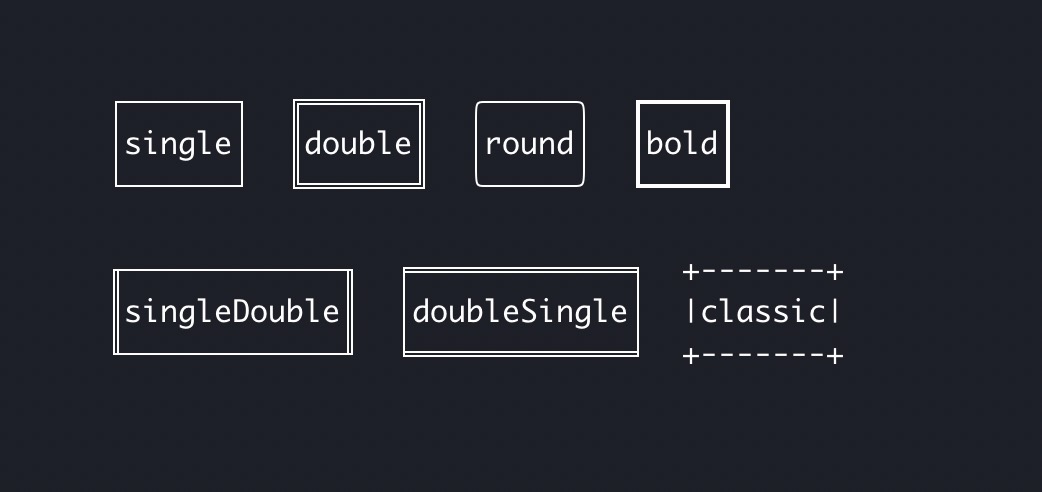
Alternatively, pass a custom border style like so:
<Box
	borderStyle={{
		topLeft: '↘',
		top: '↓',
		topRight: '↙',
		left: '→',
		bottomLeft: '↗',
		bottom: '↑',
		bottomRight: '↖',
		right: '←',
	}}
>
	<Text>Custom</Text>
</Box>
See example in examples/borders.
Type: string
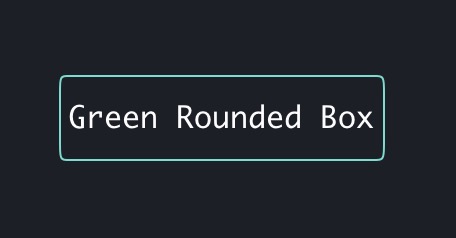
Change border color.
A shorthand for setting borderTopColor, borderRightColor, borderBottomColor, and borderLeftColor.
<Box borderStyle="round" borderColor="green">
	<Text>Green Rounded Box</Text>
</Box>
Type: string
Change top border color.
Accepts the same values as color in <Text> component.
<Box borderStyle="round" borderTopColor="green">
	<Text>Hello world</Text>
</Box>
Type: string
Change the right border color.
Accepts the same values as color in <Text> component.
<Box borderStyle="round" borderRightColor="green">
	<Text>Hello world</Text>
</Box>
Type: string
Change the bottom border color.
Accepts the same values as color in <Text> component.
<Box borderStyle="round" borderBottomColor="green">
	<Text>Hello world</Text>
</Box>
Type: string
Change the left border color.
Accepts the same values as color in <Text> component.
<Box borderStyle="round" borderLeftColor="green">
	<Text>Hello world</Text>
</Box>
Type: boolean
Default: false
Dim the border color.
A shorthand for setting borderTopDimColor, borderBottomDimColor, borderLeftDimColor, and borderRightDimColor.
<Box borderStyle="round" borderDimColor>
	<Text>Hello world</Text>
</Box>
Type: boolean
Default: false
Dim the top border color.
<Box borderStyle="round" borderTopDimColor>
	<Text>Hello world</Text>
</Box>
Type: boolean
Default: false
Dim the bottom border color.
<Box borderStyle="round" borderBottomDimColor>
	<Text>Hello world</Text>
</Box>
Type: boolean
Default: false
Dim the left border color.
<Box borderStyle="round" borderLeftDimColor>
	<Text>Hello world</Text>
</Box>
Type: boolean
Default: false
Dim the right border color.
<Box borderStyle="round" borderRightDimColor>
	<Text>Hello world</Text>
</Box>
Type: string
Change border background color.
Accepts the same values as backgroundColor in <Text> component.
A shorthand for setting borderTopBackgroundColor, borderRightBackgroundColor, borderBottomBackgroundColor, and borderLeftBackgroundColor.
<Box borderStyle="round" borderColor="white" borderBackgroundColor="green">
	<Text>Hello world</Text>
</Box>
Type: string
Change top border background color.
Accepts the same values as backgroundColor in <Text> component.
Falls back to borderBackgroundColor if not specified.
<Box borderStyle="round" borderColor="white" borderTopBackgroundColor="green">
	<Text>Hello world</Text>
</Box>
borderBottomBackgroundColor
Type: string
Change bottom border background color.
Accepts the same values as backgroundColor in <Text> component.
Falls back to borderBackgroundColor if not specified.
<Box
	borderStyle="round"
	borderColor="white"
	borderBottomBackgroundColor="green"
>
	<Text>Hello world</Text>
</Box>
borderRightBackgroundColor
Type: string
Change right border background color.
Accepts the same values as backgroundColor in <Text> component.
Falls back to borderBackgroundColor if not specified.
<Box borderStyle="round" borderColor="white" borderRightBackgroundColor="green">
	<Text>Hello world</Text>
</Box>
borderLeftBackgroundColor
Type: string
Change left border background color.
Accepts the same values as backgroundColor in <Text> component.
Falls back to borderBackgroundColor if not specified.
<Box borderStyle="round" borderColor="white" borderLeftBackgroundColor="green">
	<Text>Hello world</Text>
</Box>
Type: boolean
Default: true
Determines whether the top border is visible.
Type: boolean
Default: true
Determines whether the right border is visible.
Type: boolean
Default: true
Determines whether the bottom border is visible.
Type: boolean
Default: true
Determines whether the left border is visible.
Type: string
Background color for the element.
Accepts the same values as color in the <Text> component.
<Box flexDirection="column">
	<Box backgroundColor="red" width={20} height={5} alignSelf="flex-start">
		<Text>Red background</Text>
	</Box>

	<Box
		backgroundColor="#FF8800"
		width={20}
		height={3}
		marginTop={1}
		alignSelf="flex-start"
	>
		<Text>Orange background</Text>
	</Box>

	<Box
		backgroundColor="rgb(0, 255, 0)"
		width={20}
		height={3}
		marginTop={1}
		alignSelf="flex-start"
	>
		<Text>Green background</Text>
	</Box>
</Box>
The background color fills the entire <Box> area and is inherited by child <Text> components unless they specify their own backgroundColor.
<Box backgroundColor="blue" alignSelf="flex-start">
	<Text>Blue inherited </Text>
	<Text backgroundColor="yellow">Yellow override </Text>
	<Text>Blue inherited again</Text>
</Box>
Background colors work with borders and padding: