React Portfolio, multiple pages with dark mode
a portfolio for developers
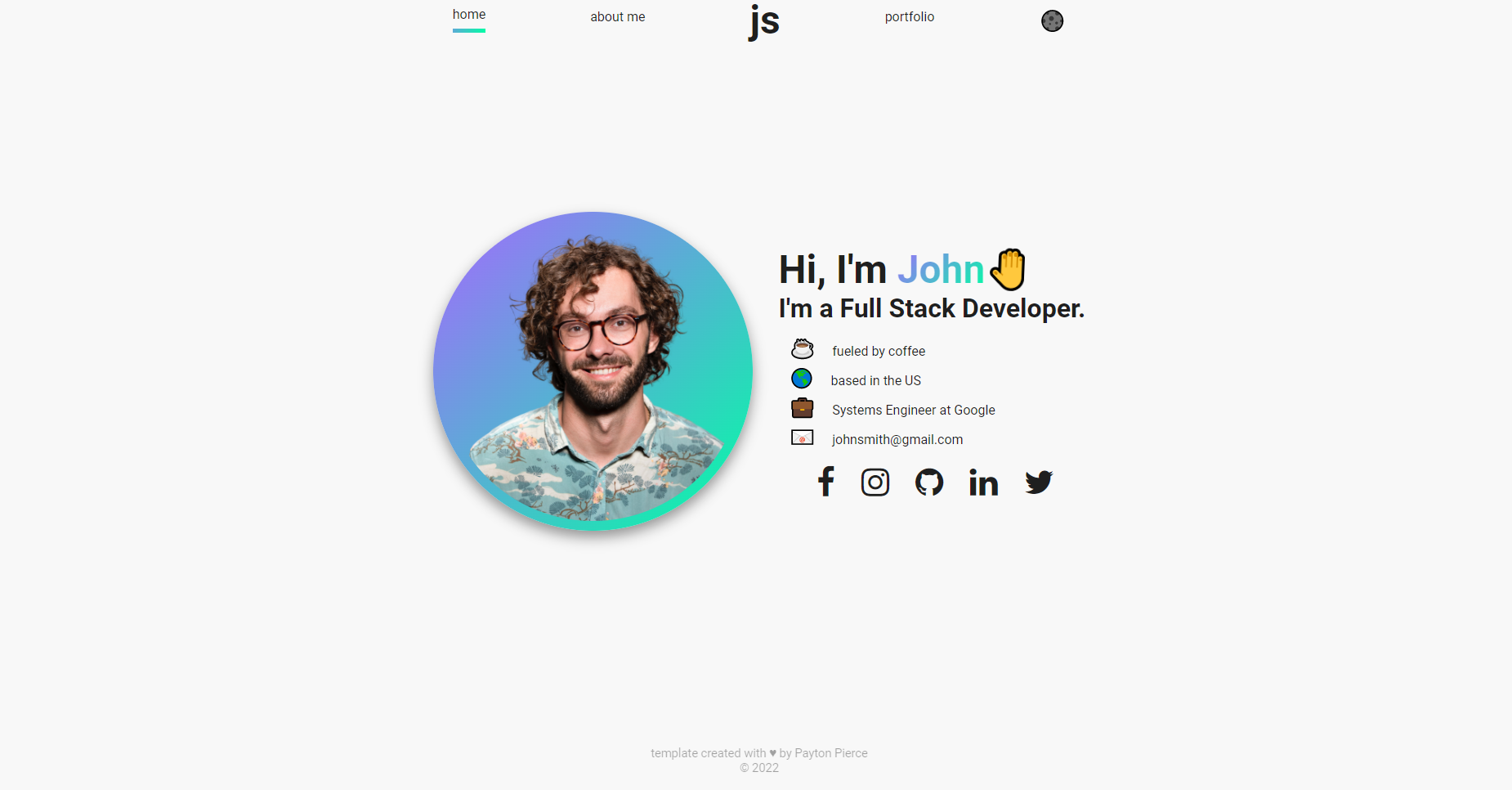
View Live Template
🌑 Dark Mode Toggler
📖 Multiple Pages (React Router)
📱 Fully Responsive
🎨 Modern Design
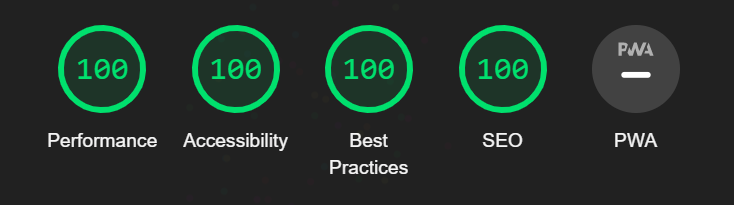
💡 Perfect Lighthouse Score
- have Git installed on your machine
- have Node.js installed on your machine
- basic familiarity with your machine's command line
- basic understanding of JSON data outline (arrays of objects basically)
- fork the repository and clone locally
- cd into the project and run
npm install to install dependencies
- once installation is complete, run
npm run start to get your local copy running in the browser.
- open the project in your file explorer, and navigate to
src/img. there, you will see a bunch of images. these need
to be replaced with your own images.
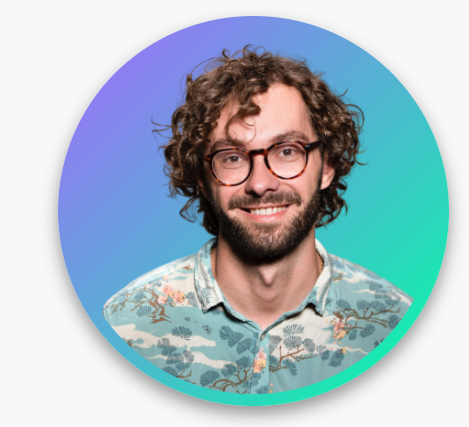
- add an image of yourself with the background removed, and cropped into a square. i know this seems picky, but the
template is set up in a way that this is how it will look best :) I recommend using https://remove.bg to remove the
background from your image. If this website wants to charge you for some reason, try searching "Remove Background AI"
on Google, there are some free ones there :)
- Once you add it to this img folder, rename it to
self.png (delete the old self.png so
yours replaces it)
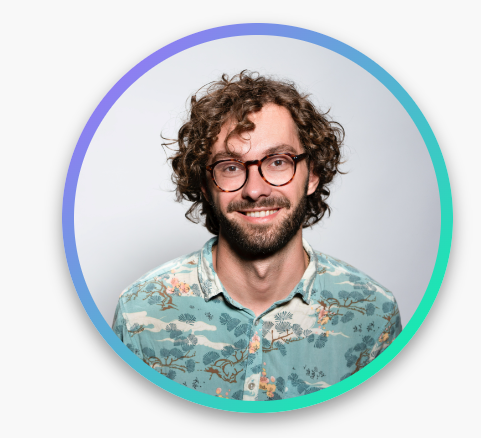
- if background removal is not an option for you, any image you use will automatically be made into a circle. for this
reason, square images without too tall of an aspect-ratio work best.
- example with background removed:
- example with background not removed:
- add to the
img folder up to 5 screenshots of projects you have completed to be added to your portfolio page. this
can either be a regular screenshot, or you can create mockups like what are on the default template. I created these
in Canva -- At the bottom of this readme is instructions to create them yourself!
example: 
- to make life easier later, name these files
mock1.png, mock2.png, etc.
Next, open the project in your code editor. Navigate to src/info/Info.js. There are some instructions written in the
comments there, but I will go over it all here as well:
near the top of the file, you will find a line that looks like this:
export let colors = ["rgb(0,255,164)", "rgb(166,104,255)"];
There are the colors being used to determine the "accents" throughout the site - the circle behind your self portrait,
the color of your name, the labels on the about page, and the underline for the navigation.
You can pick any colors you like for this, just play around with it and make sure to check the colors against both light
mode and dark mode to make sure it looks good on both :)
going further down the Info.js file, you can start replacing the default information with your own information, such as
first name, last name, initials, position, etc. Some of the values in this file should remain untouched -- be sure to
read the comments to see what to edit.
if you're not sure how to get emojis for the miniBio and hobbies, on Mac you should be able to access the emoji keyboard
with ctrl+cmd+space, and on Windows with windows+period('.')
Otherwise, use Emojipedia to find and copy-paste what you like.
For the 'socials' section, be sure to replace the links with your own social profile links.
For the 'portfolio' section, update the titles to whatever you want. The live link should be a link to the live demo of your project. The source link should be a link to the repository where the code of the project is hosted,
such as GitHub.
Note: If you have more than 5 projects, you will need to add more objects to the portfolio array. Just copy from the
opening bracket to the comma of one object and continue pasting as many as you need. If you need help with this, feel
free to reach out.
And that's it! If you save the file and check your live server, you should see that the information has been updated and
the portfolio has been customized.
Now, you can commit and push your changes to your forked repository, and deploy however you like.
And you're done!
If you have any questions or issues with the setup process, feel free to contact me by any of the means below:
Twitter | paytontaylor96@gmail.com
Or, use this repo and post an "issue" :)
All that I ask is that you please credit me for the template :) If you'd like to remove the credit from the bottom of
the site, go for it, just link my profile somewhere in your ReadMe when you deploy, or wherever.
.•° ✿ °•.
If you enjoyed this template and want to support my ability to make more of these,
as well as creating video tutorials about React projects, writing articles about
helpful developer tools, or you just want to be nice, feel free to
support me on Ko-Fi!
If you have any suggestions for how to improve this template, the ReadMe guide, etc.
please don't hesitate to reach out -- I will always happily accept constructive feedback!
°•. ✿ .•°
How to create project mock-ups in Canva
You must have a Canva account for this to work! If you don't want to create one, feel free to send me laptop and mobile sized screenshots of your projects and I will make some mocks for you! It just might take a couple days to get to them. My contact info can be found on my Github profile or in this readme. Feel free to contact via Twitter or email, or to open an issue on this project.
Now, then!
The easiest way is to click on this link and edit with the desktop and mobile views of your project.
-
Double-click the "computer" screen in the mockup linked above, and click "delete" on your keyboard to remove it. Do the same with the screenshot that is in mobile. Once completed, it should look like this:

-
On the left sidebar, click "uploads" and then "upload files" to upload your screenshots of your own project (get one for desktop view and one for mobile view)
-
Drag those screenshots into the appropriate frames, replacing the cloud-and-sky background. It should snap right in.
-
Finally, at the top right corner, click on the "Share" button and then "Download" -- set the file type to PNG, and then download. If you have Canva Premium, you can do this with a transparent background. If not, remove the background yourself using either a photo editor like Photopea, or an AI background remover (just google it, you can usually use them for free a few times).
-
These are the images you will want to put in the img/ folder of the project and name "mock1" "mock2" etc. etc. Hope this helps!
examples of people using this template!
Alan Tram
Irfan Balghari
Mete Karasakal
Igor Nascimento
Austin
Anshu Sharma
Humberto Dutra
Mehmet Zorlu
Antti Tamminen
Joseph A. Sangine
Andrew VanOver
Luca Martinelli
Eugene
Ajan JaiRam
Leo Souquet
Bahrul Ulum
Pedro Fontes
Laísa Rio
Akshay Mattoo
Alwin Ning
Hyun Woo
Dirk Kotze
Iuliia Sutygina

