Sigfox Node.js Callback Demo
- Logs the message sent by your Sigfox objects in an SQL database
- Display a table of received messages, with their unique id, data payload and relevant metadata
This is a Node.js + hapi application, with three routes:
GET / to display the dashboardPOST /uplink to log an uplink callbackPOST /downlink to log a downlink request, and send a reply back to the device
Before installing the app itself, check that the main dependencies are installed on your system
To install, the better is probably to use nvm (Node version manager) that will let you switch between version of Node.
As of July 2019, the LTS version of Node.js is v10.16.0
Follow the instructions on the PostgreSQL website.
DATABASE_URL : URL of the PostgreSQL database. Ex postgres://user:password@localhost/sigfoxPORT: the port your app will be listening to. Defaults to 8000
Either set them in the env, or use a config.local.js file, that will be used to populate process.env
File structure:
module.exports={ DATABASE_URL: 'postgres://user:password@localhost/sigfox' };
A post install script will init a callbacks database
Navigate to http://localhost:8000/ in your browser.
Table will be empty by default
$ curl -X POST http://localhost:8000/uplink -H "Content-Type:application/json" -d '{"device":"1234", "data":"0", "station":"0001", "rssi":null, "duplicate":false}'
$ curl -X POST http://localhost:8000/downlink -H "Content-Type:application/json" -d '{"device":"1234", "data":"0", "station":"04E0", "rssi":-122, "duplicate":false}'
Callback setup on Sigfox Cloud
- Log into your Sigfox backend account
- In the device type section, access to the device type of the object you want to track
- In the sidebar, click on the Callbacks option
- Click the New button
- Choose "Custom callback"
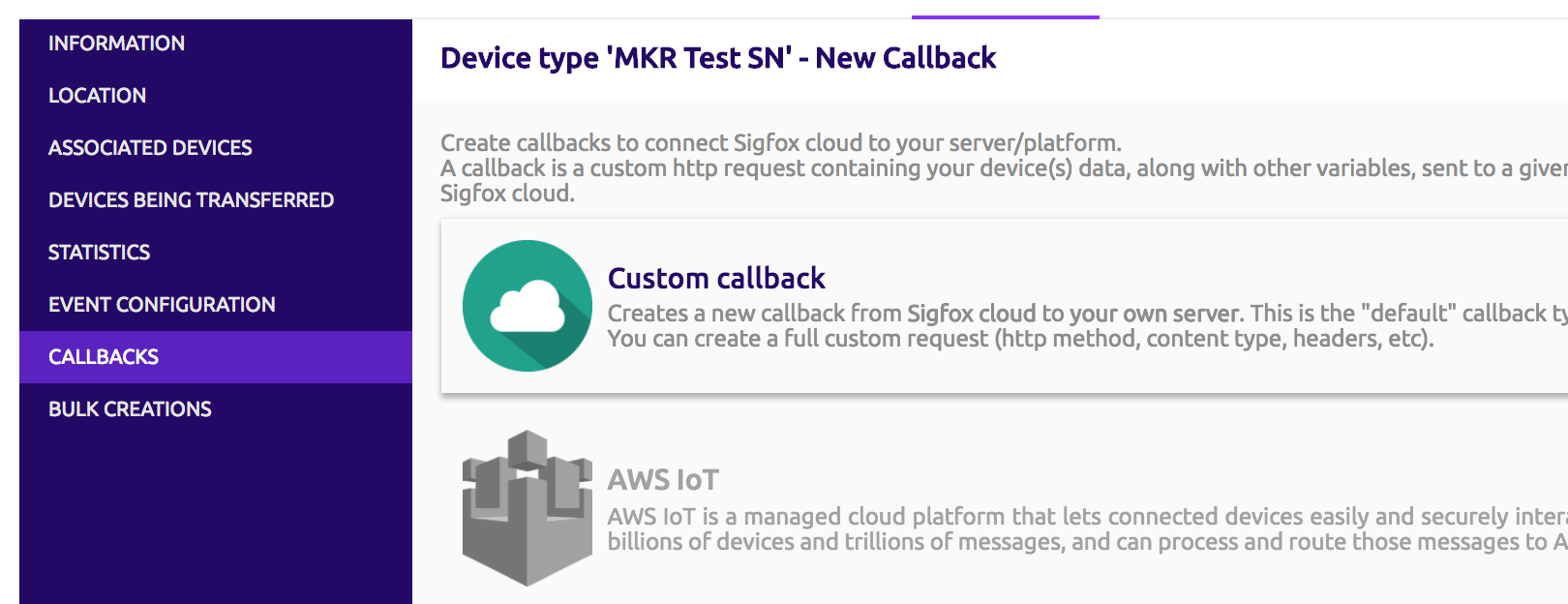
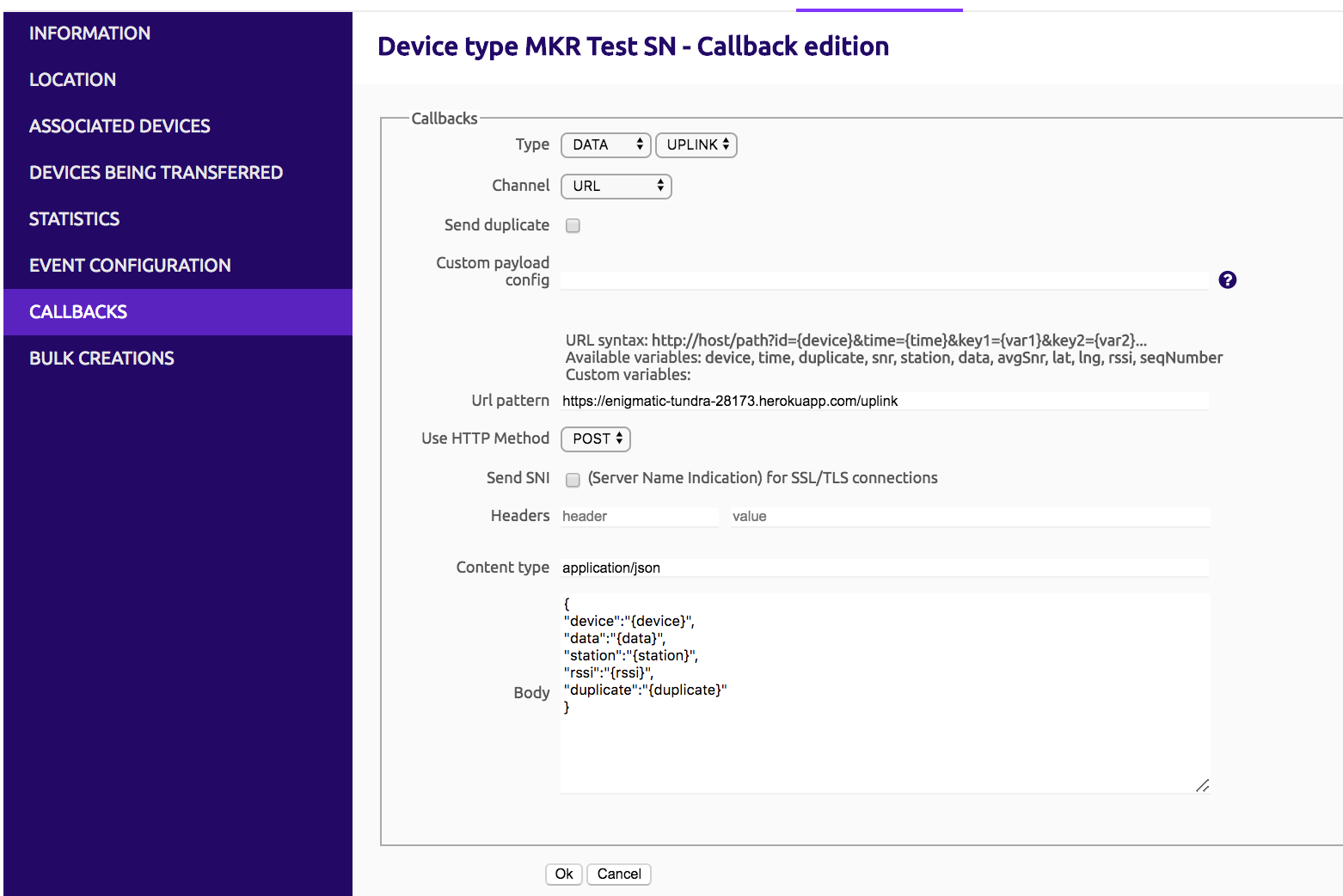
Set your callback as following
- Type:
DATA UPLINK
- Channel:
URL
- Url pattern :
http://{your URL}/uplink
- HTTP method:
POST
- Content-Type :
application/json
- Body :
{"device":"{device}", "data":"{data}", "station":"{station}", "rssi":"{rssi}", "duplicate":"{duplicate}"}
- Click OK
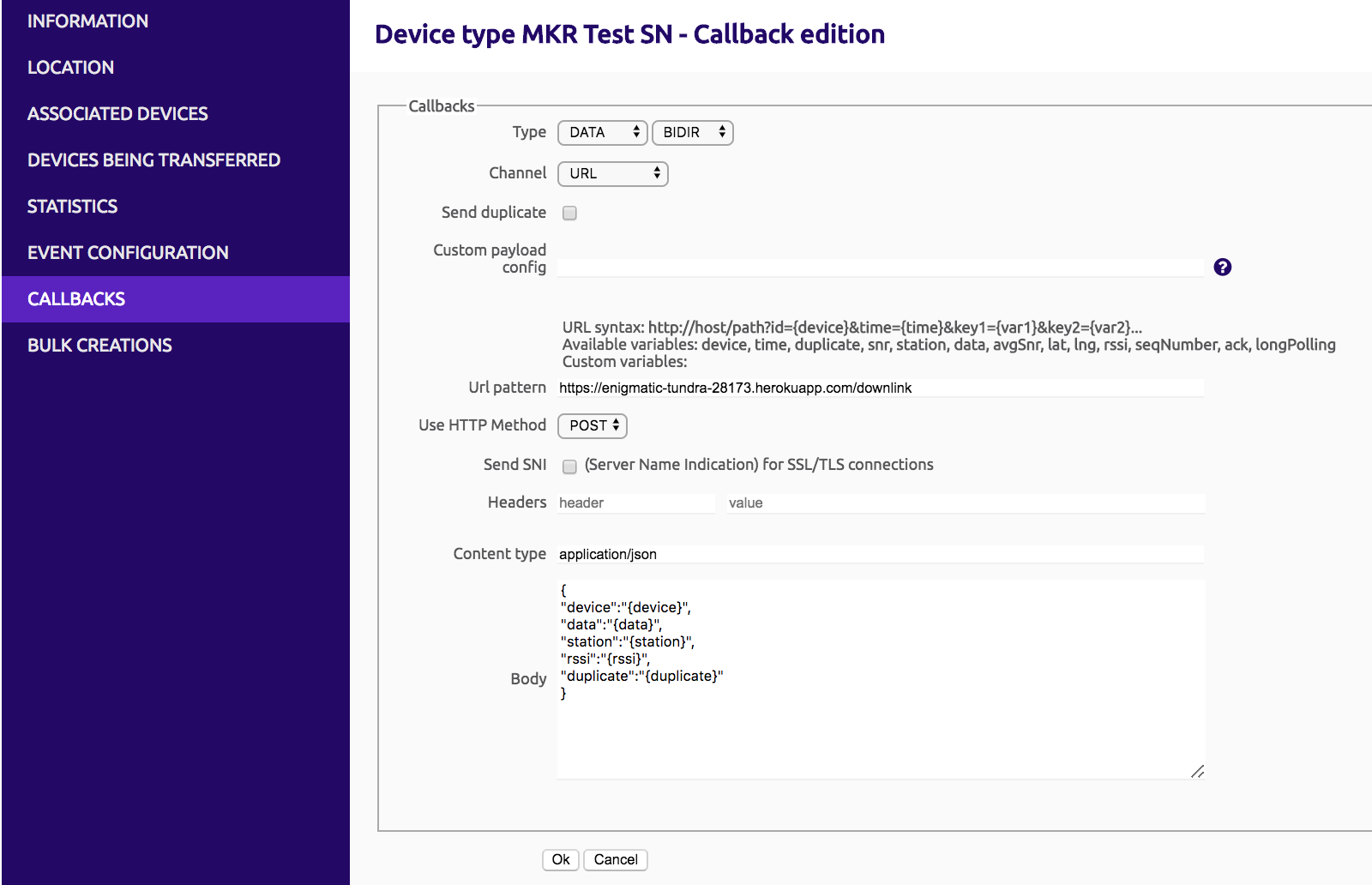
Set your callback as following:
- Type:
DATA BIDIR
- Channel:
URL
- Url pattern :
http://{your URL}/uplink
- HTTP method:
POST
- Content-Type :
application/json
- Body :
{"device":"{device}", "data":"{data}", "station":"{station}", "rssi":"{rssi}", "duplicate":"{duplicate}"}
- Click OK
By default, new downlink callbacks are inactive.
You need to explicitly activate them, by clicking on the empty disc in the Downlink column
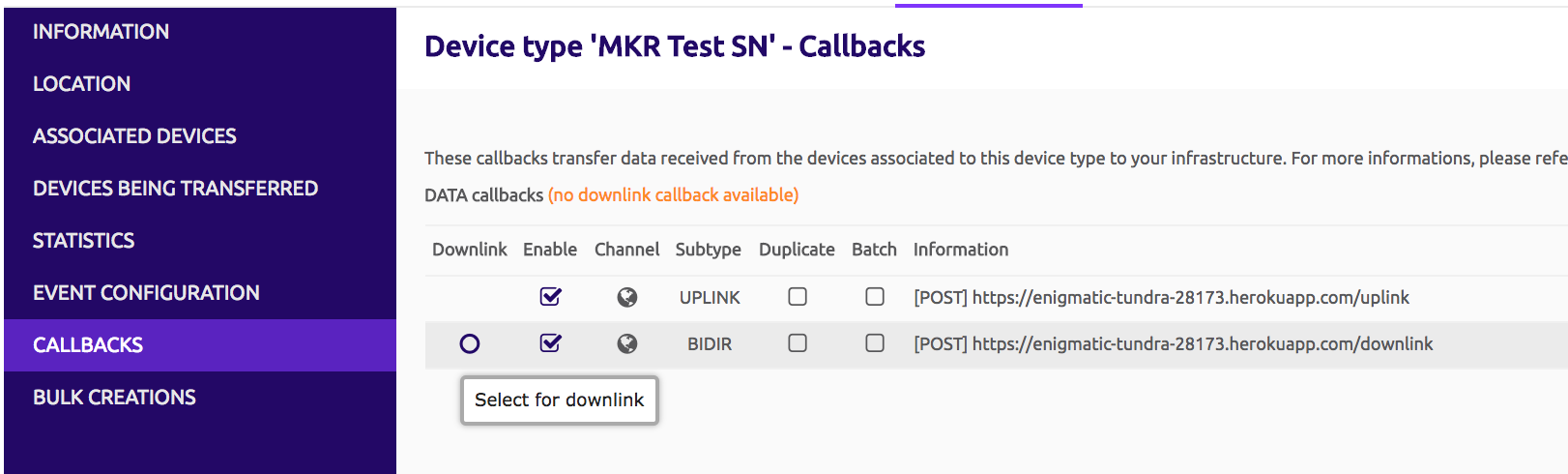
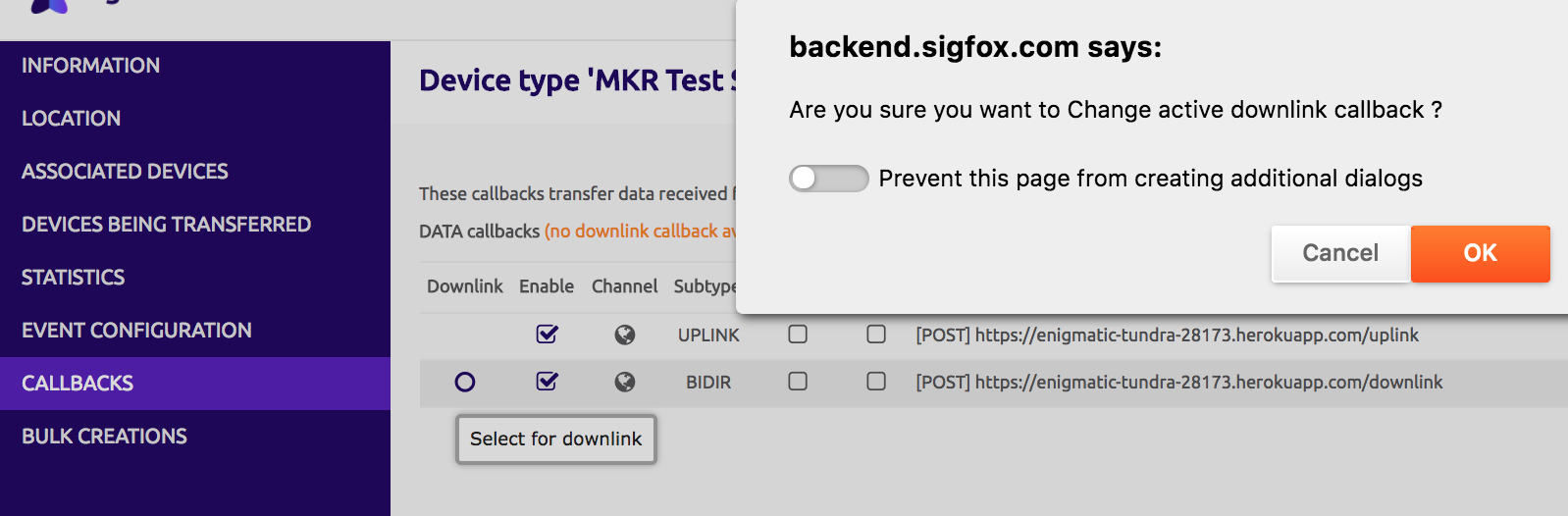
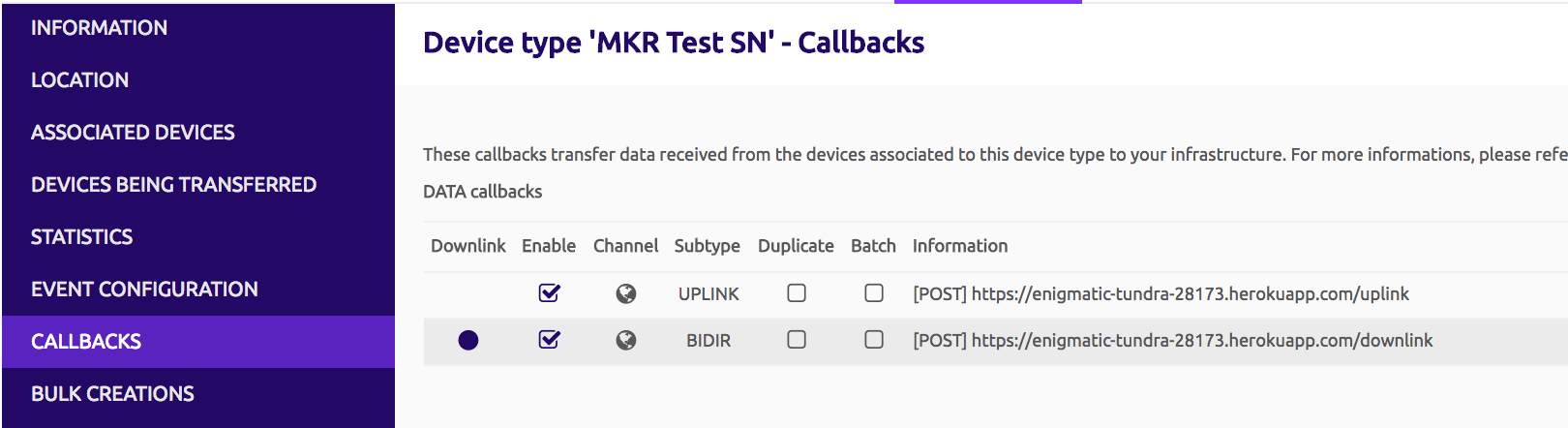
Once activated, your downlink callback will have a blue disk displayed in the Downlink column:
If you have an Heroku account, you can easily deploy this demo application online:
- Create a new application
- Attach a PostgreSQL addon. This will populate the
DATABASE_URL env var, pointing to your new database
- Deploy the application & start it
	$ heroku apps:create
	$ heroku addons:create heroku-postgresql:hobby-dev
	$ git push heroku master
	$ heroku ps:scale web=1
	$ heroku open
This tutorial aims to help you discover the uplink and downlink capabilities.
Please, be aware messages will be duplicated in the PostgreSQL database as the message "data" is saved when both uplink and downlink callbacks are called.
You could only use the BIDIR callback which enables to:
- save the uplink frame in a database (using the "data" parameter containing the payload)
- send a downlink frame to a device by filtering the "ack" boolean parameter (which tells if the device is asking for one)


