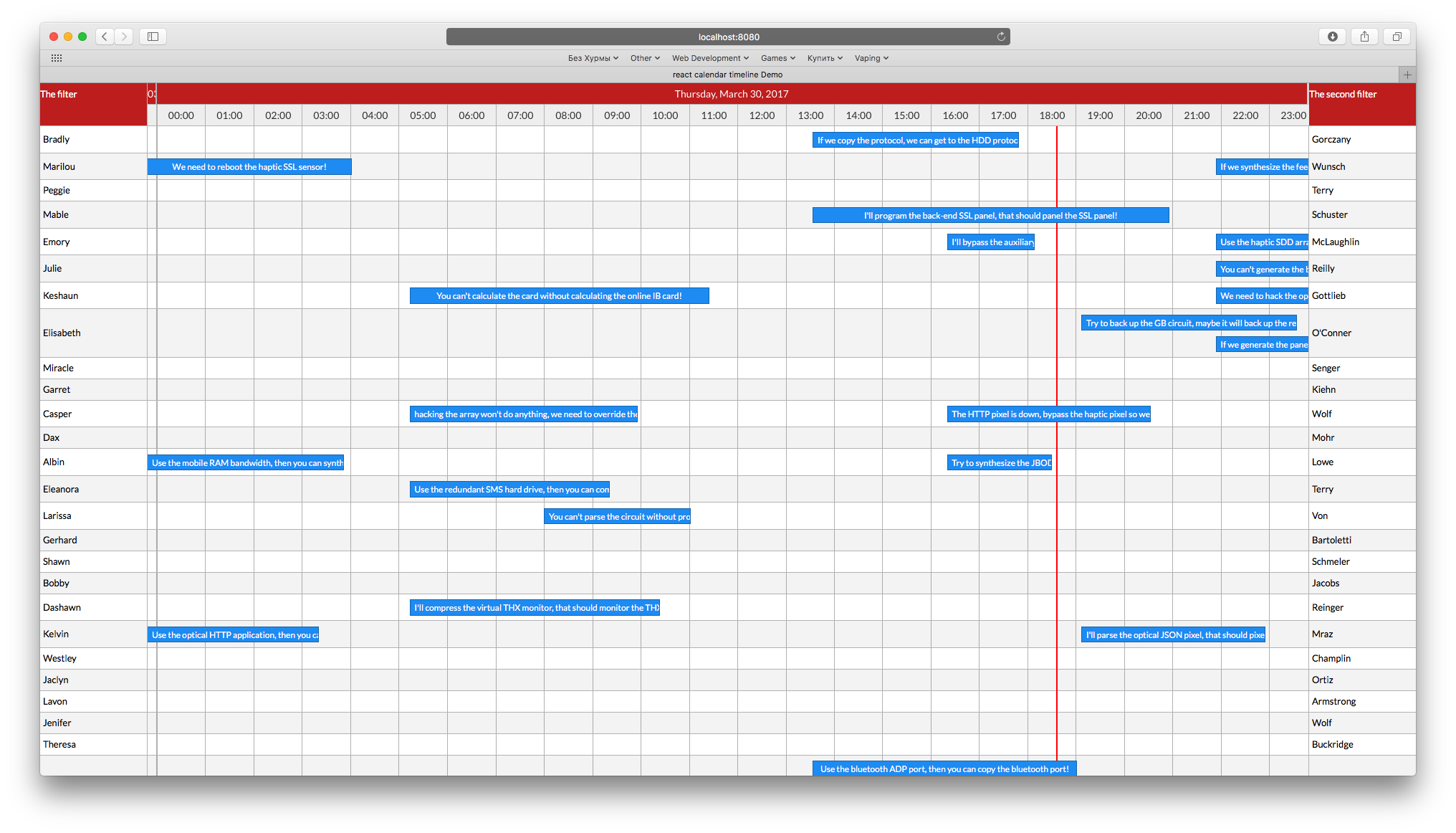
A modern and responsive React timeline component.
Version 0.30.0-beta.17 Now Available!
We're excited to announce the beta release of v0.30.0 which includes:
The beta version is available via:
npm install react-calendar-timeline@beta
We encourage users to try out the beta and provide feedback before the stable release. Please report any issues on GitHub.
The latest stable release is 0.28.0. If you are not ready to upgrade to the beta, install the stable version:
npm install react-calendar-timeline
The stable version uses moment.js as its date library. For stable version documentation, refer to the 0.28.0 README.
The rest of this README documents the 0.30.0 beta API.
Migrating from 0.2x to 0.30.0
- Date library:
moment has been replaced with dayjs. Update your peer dependency and all date-related code accordingly.
- CSS import:
'react-calendar-timeline/lib/Timeline.css' is now 'react-calendar-timeline/style.css'
- React version: React 18+ is required (React 16/17 no longer supported)
- ImmutableJS:
immutableJS arrays are no longer supported — use plain JavaScript arrays
- TypeScript: Full TypeScript rewrite — types are now bundled (no need for
@types/react-calendar-timeline)
- Bundler: Bundled with Vite instead of webpack/rollup
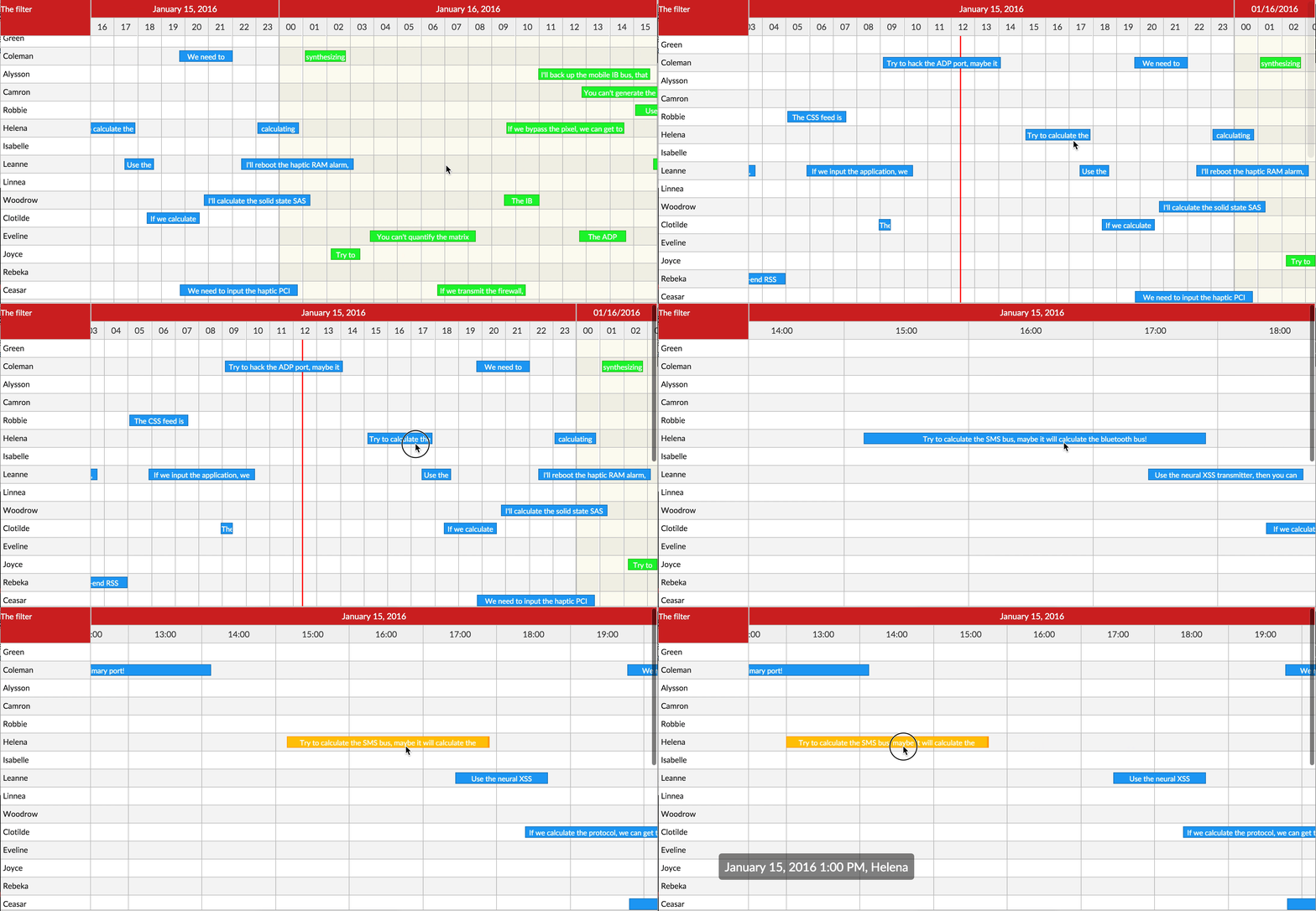
Checkout the examples here!
# via yarn
yarn add react-calendar-timeline

# via npm
npm install --save react-calendar-timeline
react-calendar-timeline has react, react-dom, dayjs and interactjs as peer dependencies.
At the very minimum:
import Timeline from 'react-calendar-timeline'
// make sure you include the timeline stylesheet or the timeline will not be styled
import 'react-calendar-timeline/style.css'
import dayjs from 'dayjs'
import { createRoot } from 'react-dom/client'

const groups = [{ id: 1, title: 'group 1' }, { id: 2, title: 'group 2' }]

const items = [
  {
    id: 1,
    group: 1,
    title: 'item 1',
    start_time: dayjs(),
    end_time: dayjs().add(1, 'hour')
  },
  {
    id: 2,
    group: 2,
    title: 'item 2',
    start_time: dayjs().add(-0.5, 'hour'),
    end_time: dayjs().add(0.5, 'hour')
  },
  {
    id: 3,
    group: 1,
    title: 'item 3',
    start_time: dayjs().add(2, 'hour'),
    end_time: dayjs().add(3, 'hour')
  }
]

createRoot(document.getElementById('root')).render(
  <div>
    Rendered by react!
    <Timeline
      groups={groups}
      items={items}
      defaultTimeStart={dayjs().add(-12, 'hour')}
      defaultTimeEnd={dayjs().add(12, 'hour')}
    />
  </div>
)NB! All props need to be immutable. For example, this means if you wish to change the title of one of your items, please pass in a whole new items array instead of changing the title in the old array. Here's more info.
The component can take many props:
Expects an array of objects with the following attributes:
{
  id: 1,
  title: 'group 1',
  rightTitle: 'title in the right sidebar',
  stackItems?: true,
  height?: 30
}
If you use the right sidebar, you can pass optional rightTitle property here.
If you want to overwrite the calculated height with a custom height, you can pass a height property as an int in pixels here. This can be very useful for categorized groups.
Expects an array of objects with the following attributes:
{
  id: 1,
  group: 1,
  title: 'Random title',
  start_time: 1457902922261,
  end_time: 1457902922261 + 86400000,
  canMove: true,
  canResize: false,
  canChangeGroup: false,
  itemProps: {
    // these optional attributes are passed to the root <div /> of each item as <div {...itemProps} />
    'data-custom-attribute': 'Random content',
    'aria-hidden': true,
    onDoubleClick: () => { console.log('You clicked double!') },
    className: 'weekend',
    style: {
      background: 'fuchsia'
    }
  }
}
The preferred (fastest) option is to give Unix timestamps in milliseconds for start_time and end_time. Objects that convert to them (JavaScript Date or dayjs()) will also work, but will be a lot slower.
defaultTimeStart and defaultTimeEnd
Unless overridden by visibleTimeStart and visibleTimeEnd, specify where the calendar begins and where it ends. This parameter expects a Date or dayjs object.
visibleTimeStart and visibleTimeEnd
The exact viewport of the calendar. When these are specified, scrolling in the calendar must be orchestrated by the onTimeChange function. This parameter expects a Unix timestamp in milliseconds.
Note that you need to provide either defaultTimeStart/End or visibleTimeStart/End for the timeline to function
a number (default to 3) which represents the extra timeline rendered on right and lift of the visible area which the user will scroll through before the time rerenders.
more explanation in section behind the scenes
Note: setting buffer to 1 will disable the scrolling on the timeline
An array with id's corresponding to id's in items (item.id). If this prop is set you have to manage the selected items yourself within the onItemSelect handler to update the property with new id's and use onItemDeselect handler to clear selection. This overwrites the default behaviour of selecting one item on click.
An array specifying keys in the items and groups objects. Defaults to
{
  groupIdKey: 'id',
  groupTitleKey: 'title',
  groupRightTitleKey: 'rightTitle',
  itemIdKey: 'id',
  itemTitleKey: 'title',    // key for item div content
  itemDivTitleKey: 'title', // key for item div title (<div title="text"/>)
  itemGroupKey: 'group',
  itemTimeStartKey: 'start_time',
  itemTimeEndKey: 'end_time',
}Additional class names as a string for the root Timeline element.
Width of the sidebar in pixels. If set to 0, the sidebar is not rendered. Defaults to 150.
Everything passed here will be displayed above the left sidebar. Use this to display small filters or so. Defaults to null.
Width of the right sidebar in pixels. If set to 0, the right sidebar is not rendered. Defaults to 0.
Everything passed here will be displayed above the right sidebar. Use this to display small filters or so. Defaults to null.
Snapping unit when dragging items. Defaults to 15 * 60 * 1000 or 15min. When so, the items will snap to 15min intervals when dragging.
The minimum width, in pixels, of a timeline entry when it's possible to resize. If not reached, you must zoom in to resize more. Default to 20.
Height of one line in the calendar in pixels. Default 30
What percentage of the height of the line is taken by the item? Default 0.65
Smallest time the calendar can zoom to in milliseconds. Default 60 * 60 * 1000 (1 hour)
notes: please note than second won't show up unless you change this to 60 * 1000
Largest time the calendar can zoom to in milliseconds. Default 5 * 365.24 * 86400 * 1000 (5 years)
How many pixels we can drag the background for it to be counted as a click on the background. Default 3
Can items be dragged around? Can be overridden in the items array. Defaults to true
Can items be moved between groups? Can be overridden in the items array. Defaults to true
Can items be resized? Can be overridden in the items array. Accepted values: false, "left", "right", "both". Defaults to "right". If you pass true, it will be treated as "right" to not break compatibility with versions 0.9 and below.
Append a special .rct-drag-right handle to the elements and only resize if dragged from there. Defaults to false
Stack items under each other, so there is no visual overlap when times collide. Can be overridden in the groups array. Defaults to false.
Zoom in when scrolling the mouse up/down. Defaults to false
Normally tapping (touching) an item selects it. If this is set to true, a tap will have the same effect, as selecting with the first click and then clicking again to open and send the onItemClick event. Defaults to false.
With what step to display different units. E.g. 15 for minute means only minutes 0, 15, 30 and 45 will be shown.
Default:
{
  second: 1,
  minute: 1,
  hour: 1,
  day: 1,
  month: 1,
  year: 1
}Ref callback that gets a DOM reference to the scroll body element. Can be useful to programmatically scroll.
onItemDrag(itemDragObject)
Called when an item is moving or resizing. Returns an object with the following properties:
| property |
type |
description |
eventType |
string |
retuns either move or resize |
itemId |
number |
ID of the item being moved or resized |
time |
number |
UNIX timestamp in milliseconds |
edge |
string |
on resize, returns a value of either left or right |
newGroupOrder |
number |
on move, index position of the new group that the item is moving to |
onItemMove(itemId, dragTime, newGroupOrder)
Callback when an item is moved. Returns 1) the item's ID, 2) the new start time and 3) the index of the new group in the groups array.
onItemResize(itemId, time, edge)
Callback when an item is resized. Returns 1) the item's ID, 2) the new start or end time of the item 3) The edge that was dragged (left or right)
onItemSelect(itemId, e, time)
Called when an item is selected. This is sent on the first click on an item. time is the time that corresponds to where you click/select on the item in the timeline.
Called when deselecting an item. Used to clear controlled selected prop.
onItemClick(itemId, e, time)
Called when an item is clicked. Note: the item must be selected before it's clicked... except if it's a touch event and itemTouchSendsClick is enabled. time is the time that corresponds to where you click on the item in the timeline.
onItemDoubleClick(itemId, e, time)
Called when an item was double clicked. time is the time that corresponds to where you double click on the item in the timeline.
onItemContextMenu(itemId, e, time)
Called when the item is clicked by the right button of the mouse. time is the time that corresponds to where you context click on the item in the timeline. Note: If this property is set the default context menu doesn't appear.
onCanvasClick(groupId, time, e)
Called when an empty spot on the canvas was clicked. Get the group ID and the time as arguments. For example open a "new item" window after this.
onCanvasDoubleClick(groupId, time, e)
Called when an empty spot on the canvas was double clicked. Get the group ID and the time as arguments.
onCanvasContextMenu(groupId, time, e)
Called when the canvas is clicked by the right button of the mouse. Note: If this property is set the default context menu doesn't appear
onZoom(timelineContext, unit)
Called when the timeline is zoomed, either via mouse/pinch zoom or clicking header to change timeline units
moveResizeValidator(action, itemId, time, resizeEdge)
This function is called when an item is being moved or resized. It's up to this function to return a new version of change, when the proposed move would violate business logic.
The argument action is one of move or resize.
The argument resizeEdge is when resizing one of left or right.
The argument time describes the proposed new time for either the start time of the item (for move) or the start or end time (for resize).
The function must return a new unix timestamp in milliseconds... or just time if the proposed new time doesn't interfere with business logic.
For example, to prevent moving of items into the past, but to keep them at 15min intervals, use this code:
function (action, item, time, resizeEdge) {
  if (time < new Date().getTime()) {
    var newTime = Math.ceil(new Date().getTime() / (15*60*1000)) * (15*60*1000);
    return newTime;
  }

  return time
}
onTimeChange(visibleTimeStart, visibleTimeEnd, updateScrollCanvas, unit)
A function that's called when the user tries to scroll. Call the passed updateScrollCanvas(start, end) with the updated visibleTimeStart and visibleTimeEnd (as unix timestamps in milliseconds) to change the scroll behavior, for example to limit scrolling.
Here is an example that limits the timeline to only show dates starting 6 months from now and ending in 6 months.
// this limits the timeline to -6 months ... +6 months
const minTime = dayjs().add(-6, 'month').valueOf()
const maxTime = dayjs().add(6, 'month').valueOf()

function (visibleTimeStart, visibleTimeEnd, updateScrollCanvas) {
  if (visibleTimeStart < minTime && visibleTimeEnd > maxTime) {
    updateScrollCanvas(minTime, maxTime)
  } else if (visibleTimeStart < minTime) {
    updateScrollCanvas(minTime, minTime + (visibleTimeEnd - visibleTimeStart))
  } else if (visibleTimeEnd > maxTime) {
    updateScrollCanvas(maxTime - (visibleTimeEnd - visibleTimeStart), maxTime)
  } else {
    updateScrollCanvas(visibleTimeStart, visibleTimeEnd)
  }
}
onBoundsChange(canvasTimeStart, canvasTimeEnd)
Called when the bounds in the calendar's canvas change. Use it for example to load new data to display. (see "Behind the scenes" below). canvasTimeStart and canvasTimeEnd are unix timestamps in milliseconds.
Render prop function used to render a customized item. The function provides multiple parameters that can be used to render each item.
Parameters provided to the function has two types: context params which have the state of the item and timeline, and prop getters functions
| property |
type |
description |
timelineWidth |
number |
returns the full width of the timeline. |
visibleTimeStart |
number |
returns the exact start of view port of the calendar |
visibleTimeEnd |
number |
returns the exact end of view port of the calendar. |
canvasTimeStart |
number |
denotes the start time in ms of the canvas timeline |
canvasTimeEnd |
number |
denotes the end time in ms of the canvas timeline |
| property |
type |
description |
dimensions |
object |
returns the dimensions of the item which includes collisionLeft, collisionWidth, height, isDragging, left, order, originalLeft, stack, top, and width |
useResizeHandle |
boolean |
returns the prop useResizeHandle from calendar root component |
title |
string |
returns title to render in content element. |
canMove |
boolean |
returns if the item is movable. |
canResizeLeft |
boolean |
returns if the item can resize from the left |
canResizeRight |
boolean |
returns if the item can resize from the right. |
selected |
boolean |
returns if the item is selected. |
dragging |
boolean |
returns if the item is being dragged |
dragStart |
object |
returns x and y of the start dragging point of the item. |
dragTime |
number |
current drag time. |
dragGroupDelta |
number |
returns number of groups the item moved. if negative, moving was to top. If positive, moving was to down |
resizing |
boolean |
returns if the item is being resized. |
resizeEdge |
left, right |
the side from which the component is being resized form |
resizeStart |
number |
returns the x value from where the component start moving |
resizeTime |
number |
current resize time |
width |
boolean |
returns the width of the item (same as in dimensions) |
These functions are used to apply props to the elements that you render. This gives you maximum flexibility to render what, when, and wherever you like.
Rather than applying props on the element yourself and to avoid your props being overridden (or overriding the props returned). You can pass an object to the prop getters to avoid any problems. This object will only accept some properties that our component manage so the component make sure to combine them correctly.
| property |
type |
description |
getItemProps |
function(props={}) |
returns the props you should apply to the root item element. |
getResizeProps |
function(props={}) |
returns two sets of props to apply on the left and right elements as resizing elements if you have useResizeHandle prop set to true |
-
getItemProps returns the props you should apply to the root item element. The returned props are:
- key: item id
- ref: function to get item reference
- className: classnames to be applied to the item
- onMouseDown: event handler
- onMouseUp: event handler
- onTouchStart: event handler
- onTouchEnd: event handler
- onDoubleClick: event handler
- onContextMenu: event handler
- style: inline object
** the given styles will only override the styles that are not a requirement for positioning the item. Other styles like color, radius and others
These properties can be overriden using the prop argument with properties:
- className: class names to be added
- onMouseDown: event handler will be called after the component's event handler
- onMouseUp: event handler will be called after the component's event handler
- onTouchStart: event handler will be called after the component's event handler
- onTouchEnd: event handler will be called after the component's event handler
- onDoubleClick: event handler will be called after the component's event handler
- onContextMenu: event handler will be called after the component's event handler
- style: extra inline styles to be applied to the component
-
getResizeProps returns the props you should apply to the left and right resize handlers only if useResizeHandle set to true. The returned object has the props for the left element under property left and the props to be applied to the right element under right :
- left
- ref: function to get element reference
- style: style to be applied to the left element
- className: class names to be applied to left className
- right
- ref: function to get element reference
- style: style to be applied to the right element
- className: class names to be applied to left className
These properties can be override using the prop argument with properties:
- leftStyle: style to be added to left style
- rightStyle: style to be added to right style
- leftClassName: classes to be added to left handler
- rightClassName: classes to be added to right handler
example
let items = [
  {
    id: 1,
    group: 1,
    title: 'Title',
    tip: 'additional information',
    color: 'rgb(158, 14, 206)',
    selectedBgColor: 'rgba(225, 166, 244, 1)',
    bgColor : 'rgba(225, 166, 244, 0.6)',
    ...
  }
]

itemRenderer: ({
  item,
  itemContext,
  getItemProps,
  getResizeProps
}) => {
  const { left: leftResizeProps, right: rightResizeProps } = getResizeProps()
  return (
    <div {...getItemProps(item.itemProps)}>
      {itemContext.useResizeHandle ? <div {...leftResizeProps} /> : ''}

      <div
        className="rct-item-content"
        style={{ maxHeight: `${itemContext.dimensions.height}` }}
      >
        {itemContext.title}
      </div>

      {itemContext.useResizeHandle ? <div {...rightResizeProps} /> : ''}
    </div>
  )}

}React component that will be used to render the content of groups in the
sidebar. Will be passed the group and isRightSidebar as props.
let groups = [
  {
    id: 1,
    title: 'Title',
    tip: 'additional information'
  }
]

groupRenderer = ({ group }) => {
  return (
    <div className="custom-group">
      <span className="title">{group.title}</span>
      <p className="tip">{group.tip}</p>
    </div>
  )
}The component automatically detects when the window has been resized. Optionally you can also detect when the component's DOM element has been resized.
To do this, pass a resizeDetector. Since bundling it by default would add ~18kb of minimized JS, you need to opt in to this like so:
import containerResizeDetector from 'react-calendar-timeline/lib/resize-detector/container'

<Timeline resizeDetector={containerResizeDetector} ... />
verticalLineClassNamesForTime(start, end)
This function is called when the vertical line is rendered. start and end are unix timestamps in milliseconds for the current column. The function should return an array of strings containing the classNames which should be applied to the column. This makes it possible to visually highlight e.g. public holidays or office hours.
An example could look like (see: demo/vertical-classes):
verticalLineClassNamesForTime = (timeStart, timeEnd) => {
  const currentTimeStart = dayjs(timeStart)
  const currentTimeEnd = dayjs(timeEnd)

  for (let holiday of holidays) {
    if (
      holiday.isSame(currentTimeStart, 'day') &&
      holiday.isSame(currentTimeEnd, 'day')
    ) {
      return ['holiday']
    }
  }
}
Be aware that this function should be as optimized for performance as possible as it will be called on each render of the timeline (i.e. when the canvas is reset, when zooming, etc)
horizontalLineClassNamesForGroup(group)
This function is called when the horizontal line is rendered. group is the group which will be rendered into the current row. The function should return an array of strings containing the classNames which should be applied to the row. This makes it possible to visually highlight categories or important items.
An example could look like:
horizontalLineClassNamesForGroup={(group) => group.root ? ["row-root"] : []}Timeline markers are markers that are overlayed on the canvas at specific datepoints.
Markers can be placed in the Timeline by declaring them as children of the Timeline component:
import Timeline, {
  TimelineMarkers,
  CustomMarker,
  TodayMarker,
  CursorMarker
} from 'react-calendar-timeline'

<Timeline>
  <TimelineMarkers>
    <TodayMarker />
    <CustomMarker date={today} />
    <CustomMarker date={tomorrow}>
      {/* custom renderer for this marker */}
      {({ styles, date }) => {
        const customStyles = {
          ...styles,
          backgroundColor: 'deeppink',
          width: '4px'
        }
        return <div style={customStyles} onClick={someCustomHandler} />
      }}
    </CustomMarker>
    <CursorMarker />
  </TimelineMarkers>
</Timeline>
Each marker allows for passing in a custom renderer via a function as a child component. This allows the user to render whatever they want (event handlers, custom styling, etc). This custom renderer receives an object with two properties:
styles: {position: 'absolute', top: 0, bottom: 0, left: number}
This object must be passed to the root component's style prop in order to be rendered properly. Note that you can merge this object with any other properties.
date: number
Date in unix timestamp of this marker. This can be used to change how your marker is rendered (or if its rendered at all)
Wrapper for timeline markers that you want rendered.
Marker that is placed on the current date/time.
interval: number | default: 10000
How often the TodayMarker refreshes. Value represents milliseconds.
children: function({styles: object, date: number}) => JSX.Element
Custom renderer for this marker. Ensure that you always pass styles to the root component's style prop as this object contains positioning of the marker.
// custom interval
const twoSeconds = 2000

<TodayMarker interval={twoSeconds} />

//custom renderer

<TodayMarker>
  {({ styles, date }) =>
    // date is value of current date. Use this to render special styles for the marker
    // or any other custom logic based on date:
    // e.g. styles = {...styles, backgroundColor: isDateInAfternoon(date) ? 'red' : 'limegreen'}
    <div style={styles} />
  }
</TodayMarker>Marker that is placed on the current date/time.
date: number | required
Where to place the marker on the timeline. date value is unix timestamp.
children: function({styles: object, date: number}) => JSX.Element
Custom renderer for this marker. Ensure that you always pass styles to the root component's style prop as this object contains positioning of the marker.
const today = Date.now()
<CustomMarker date={today} />

//custom renderer
<CustomMarker date={today}>
  {({ styles, date }) => <div style={styles} />}
</CustomMarker>

// multiple CustomMarkers
const markerDates = [
  {date: today, id: 1,},
  {date: tomorrow, id: 2,},
  {date: nextFriday, id: 3,},
]

<TimelineMarkers>
  {markerDates.map(marker => <CustomMarker key={marker.date} date={marker.date}/> )}
</TimelineMarkers>Marker that is displayed when hovering over the timeline and matches where your cursor is.
children: function({styles: object, date: number}) => JSX.Element
Custom renderer for this marker. Ensure that you always pass styles to the root component's style prop as this object contains positioning of the marker.
// render default marker for Cursor
<CursorMarker />

//custom renderer
<CursorMarker>
  {({ styles, date }) =>
    // date is value of current date. Use this to render special styles for the marker
    // or any other custom logic based on date:
    // e.g. styles = {...styles, backgroundColor: isDateInAfternoon(date) ? 'red' : 'limegreen'}
    <div style={styles} />
  }
</CursorMarker>
Timeline headers are the section above the timeline which consist of two main parts: First, the calendar header which is a scrollable div containing the dates of the calendar called DateHeader. Second, is the headers for the sidebars, called SidebarHeader, the left one and optionally the right one.
For the default case, two DateHeaders are rendered above the timeline, one primary and secondary. The secondary has the same date unit as the timeline and a primary which has a unit larger than the timeline unit by one.
For the SidebarHeaders an empty SidebarHeader will be render for the left and optionally an empty right sidebar header if rightSidebarWith exists.
To provide any custom headers for DateHeader or SidebarHeader. You need to provide basic usage to provide any custom headers. These Custom headers should be always included inside TimelineHeaders component in the component's children.
import Timeline, {
  TimelineHeaders,
  SidebarHeader,
  DateHeader
} from 'react-calendar-timeline'

<Timeline>
  <TimelineHeaders>
    <SidebarHeader>
      {({ getRootProps }) => {
        return <div {...getRootProps()}>Left</div>
      }}
    </SidebarHeader>
    <DateHeader unit="primaryHeader" />
    <DateHeader />
  </TimelineHeaders>
</Timeline>Custom headers are implemented through a set of component with mostly function as a child component pattern, designed to give the user the most control on how to render the headers.
Is the core component wrapper component for custom headers
| Prop |
type |
description |
style |
object |
applied to the root component of headers |
className |
string |
applied to the root component of the headers |
calendarHeaderStyle |
object |
applied to the root component of the calendar headers -scrollable div- DateHeader and CustomHeader) |
calendarHeaderClassName |
string |
applied to the root component of the calendar headers -scrollable div- DateHeader and CustomHeader) |
headerRef |
function |
used to get the ref of the header element |
Responsible for rendering the headers above the left and right sidebars.
| Prop |
type |
description |
variant |
left (default), right |
renders above the left or right sidebar |
children |
Function |
function as a child component to render the header |
headerData |
any |
Contextual data to be passed to the item renderer as a data prop |
a Function provides multiple parameters that can be used to render the sidebar headers
Rather than applying props on the element yourself and to avoid your props being overridden (or overriding the props returned). You can pass an object to the prop getters to avoid any problems. This object will only accept some properties that our component manage so the component make sure to combine them correctly.
| property |
type |
description |
getRootProps |
function(props={}) |
returns the props you should apply to the root div element. |
data |
any |
Contextual data passed by headerData prop |
import Timeline, {
  TimelineHeaders,
  SidebarHeader,
  DateHeader
} from 'react-calendar-timeline'

<Timeline>
  <TimelineHeaders>
    <SidebarHeader>
      {({ getRootProps }) => {
        return <div {...getRootProps()}>Left</div>
      }}
    </SidebarHeader>
    <SidebarHeader variant="right" headerData={{someData: 'extra'}}>
      {({ getRootProps, data }) => {
        return <div {...getRootProps()}>Right {data.someData}</div>
      }}
    </SidebarHeader>
    <DateHeader unit="primaryHeader" />
    <DateHeader />
  </TimelineHeaders>
</Timeline>
Note : the Child function renderer can be a component or a function for convenience
Responsible for rendering the headers above calendar part of the timeline. Consists of time intervals dividing the headers in columns.
| Prop |
type |
description |
style |
object |
applied to the root of the head |
| | |
| | |
| | |
| | |
| | |
| | |