


This is a simple command line tool to get the cost of your Azure subscription. It uses the Azure Cost Management API to get the cost and output the results to the console, text, csv, markdown or JSON. E.g. so it can be used in a workflow to get the cost of your subscription and use it in subsequent steps.
⚠️ Important: This tool uses the Azure Cost Management API. Not all Azure subscription types are supported by this API (e.g., sponsored subscriptions). Please check if your subscription is compatible before using this tool.
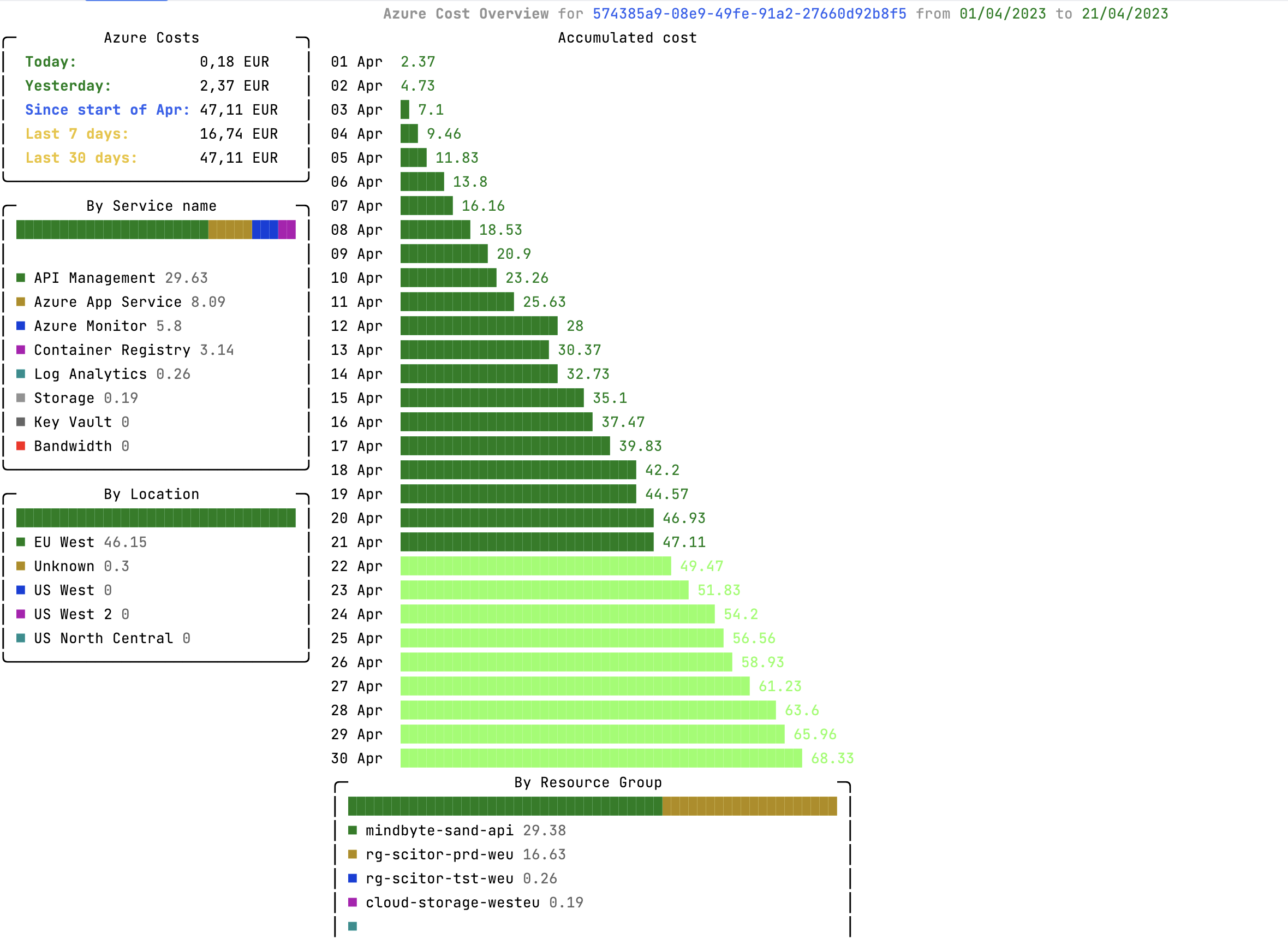
Besides showing the accumulated cost, it can also show daily cost, extract resource (costs) and list budgets.
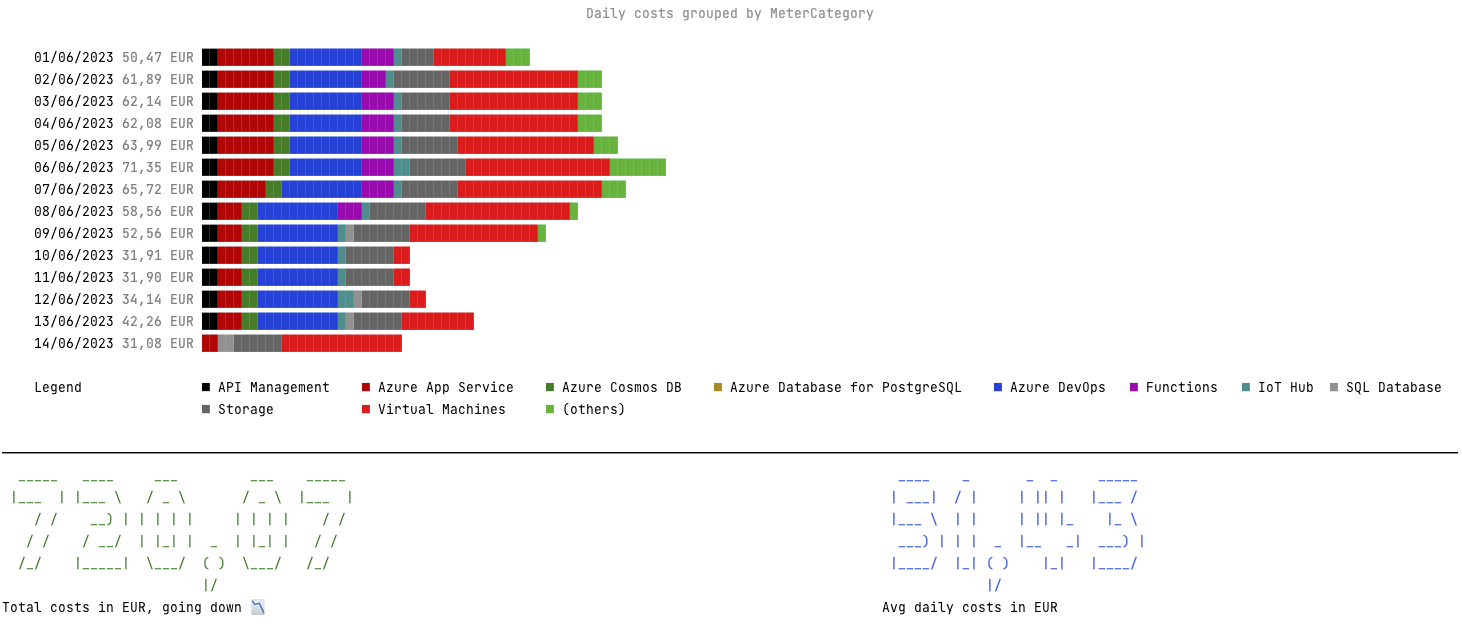
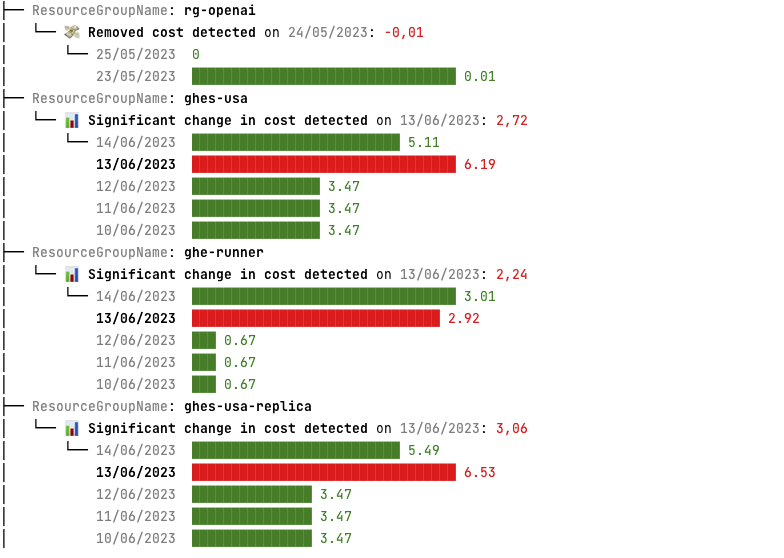
It can also detect anomalies and trends in the cost, which can be used to further automate reporting.
- .NET 8.0 or .NET 10.0 runtime
- Azure CLI authenticated (
az login) or an Azure identity with Cost Management Reader role
You can install this tool globally, using the dotnet tool command:
dotnet tool install --global azure-cost-cli
When there is a new version available on NuGet, you can use the dotnet tool update command to upgrade:
dotnet tool update --global azure-cost-cli
With a --version parameter, you can specify a specific version to install. Use the --no-cache parameter to force a re-download of the package if it cannot find the latest version.
You can invoke the tool using the azure-cost command. You can use the --help parameter to get a list of all available options. Some of the commands have additional parameters which can be shown by adding the specific command with the --help option.
Which will show:
USAGE:
    azure-cost [OPTIONS]

EXAMPLES:
    azure-cost accumulatedCost -s 00000000-0000-0000-0000-000000000000
    azure-cost accumulatedCost -o json
    azure-cost costByResource -s 00000000-0000-0000-0000-000000000000 -o text
    azure-cost dailyCosts --dimension MeterCategory
    azure-cost diff   --compare-to new.json --compare-from old.json
    azure-cost diff   --source-from 2025-03-01 --source-to 2025-03-31 --from 2025-04-01 --to 2025-04-30
    azure-cost budgets -s 00000000-0000-0000-0000-000000000000
    azure-cost detectAnomalies --dimension ResourceId --recent-activity-days 4
    azure-cost costByTag --tag cost-center

OPTIONS:
    -h, --help            Prints help information
        --debug           Increase logging verbosity to show all debug logs
    -s, --subscription    The subscription id to use. Will try to fetch the active id if not specified
    -g, --resource-group  The resource group to scope the request to. Need to be used in combination with the subscription id
    -b, --billing-account The billing account id to use
    -e, --enrollment-account The enrollment account id to use
    -o, --output          The output format to use. Defaults to Console (Console, Json, JsonC, Markdown, Text, Csv)
    -t, --timeframe       The timeframe to use for the costs. Defaults to BillingMonthToDate. When set to Custom, specify the from and to dates using the --from and --to options
        --from            The start date to use for the costs. Defaults to the first day of the previous month
        --to              The end date to use for the costs. Defaults to the current date
        --others-cutoff    10         The number of items to show before collapsing the rest into an 'Others' item
        --query           JMESPath query string. See http://jmespath.org/ for more information and examples
        --useUSD          Force the use of USD for the currency. Defaults to false to use the currency returned by the API
        --skipHeader      Skip header creation for specific output formats. Useful when appending the output from multiple runs into one file. Defaults to false
        --filter          Filter the output by the specified properties. Defaults to no filtering and can be multiple values.
        --includeTags     Include Tags from the selected dimension. Valid only for DailyCost report and output to Json, JsonC or Csv. Ignored in the rest of reports and output formats.
    -m, --metric           ActualCost    The metric to use for the costs. Defaults to ActualCost. (ActualCost, AmortizedCost)
    --costApiBaseAddress  The base address of the cost API. Defaults to https://management.azure.com/, but can be set to a different value to use a different cloud, like https://management.usgovcloudapi.net/
    --priceApiBaseAddress The base address of the price API. Defaults to https://prices.azure.com/, but can be set to a different value to use a different cloud, like https://prices.azure.us/ for government

COMMANDS:
    accumulatedCost    Show the accumulated cost details
    costByResource     Show the cost details by resource
    costByTag          Show the cost details by the provided tag key(s)
    dailyCosts         Show the daily cost by a given dimension
    diff                            Show the cost difference between two timeframes
    detectAnomalies    Detect anomalies and trends
    budgets            Get the available budgets
    regions            Get the available Azure regions
    what-if            Run what-if scenarios
Starting from version 0.35, you can select a different scope besides only subscription. Specify subscription id and resourcegroup name, billing account and/or enrollment account to scope the request to that level.
When you do not specify a subscription id, it will fetch the actively selected one of the az cli instead.
If the application is not working properly, you can use the --debug parameter to increase the logging verbosity and see more details.
This tool uses the Azure Cost Management API to get the cost. Not all subscriptions have access to this API. To check if your subscription has access, you can use the az account subscription show --subscription-id yourid --query '[subscriptionPolicies.quotaId]' -o tsv command. Validate the resulting quota id with the ones on the Microsoft list to see if it is supported. Running the tool with the --debug parameter will also show the quota id that is used.
There is a pretty strict rate limit on the cost api; the calls are retried after a 429 is received, but it might take a while before the call succeeds as it honors the retry time out.
To make the call to the Azure cost API, you do need to run this from a user account with permissions to access the cost overview of the subscription. Further more, it needs to find the active credentials and it does so by using the ChainedTokenCredential provider which will look for the az cli token first. Make sure to run az login (with optionally the --tenant parameter) to make sure you have an active session.
You can persist default settings in a JSON config file so you don't have to repeat common flags on every command.
File locations (evaluated in order, later values override earlier ones):
| Path |
Purpose |
~/.azure-cost-cli.json |
Global user defaults |
.azure-cost-cli.json (current directory) |
Project-level defaults, override global |
Path in AZURE_COST_CLI_CONFIG env var |
Overrides both of the above entirely |
Supported keys:
{
  "subscription": "00000000-0000-0000-0000-000000000000",
  "output": "Json",
  "timeframe": "BillingMonthToDate",
  "useUSD": false,
  "metric": "ActualCost",
  "othersCutoff": 10
}
All keys are optional. CLI flags always take precedence over config file values — the config only supplies defaults.
Example: Set a default subscription and output format globally so you never have to pass -s or -o:
cat > ~/.azure-cost-cli.json << 'EOF'
{
  "subscription": "xxxxxxxx-xxxx-xxxx-xxxx-xxxxxxxxxxxx",
  "output": "Text"
}
EOF

azure-cost accumulatedCost # uses your default subscription and Text outputThese flags are available on every command:
| Flag |
Description |
--no-color |
Disable ANSI color and escape codes. Useful when piping output to files or running in CI environments where color codes appear as garbage. Can also be set via the noColor key in the config file. |
--quiet |
Suppress all status spinners and progress messages. Only the actual data output is written. Useful for scripting or when redirecting output. |
--debug |
Show verbose debug information including resolved subscription IDs and API calls. |
Examples:
# Pipe clean output to a file without escape codes
azure-cost accumulatedCost -o text --no-color > report.txt

# Use in a script without spinner noise cluttering stderr
azure-cost dailyCosts -o json --quiet | jq '.[] | .cost'
You can use this tool in a GitHub workflow to get the cost of your subscription and store the results in markdown as a Job Summary. This can be used to get a quick overview of the cost of your subscription. Have a look at the workflow in this repository for an example output.
name: Azure Cost CLI Workflow

on:
  workflow_dispatch:
    inputs:
      az-subscription-id:
        description: 'Azure Subscription ID'
        required: true
jobs:
  run-azure-cost-cli:
    runs-on: ubuntu-latest
    steps:
      - name: Azure login
        uses: azure/login@v2
        with:
          client-id: ${{ secrets.AZURE_CLIENT_ID }}
          tenant-id: ${{ secrets.AZURE_TENANT_ID }}
          subscription-id: ${{ secrets.AZURE_SUBSCRIPTION_ID }}

      - name: Install Azure Cost CLI
        run: dotnet tool install -g azure-cost-cli

      - name: Run Azure Cost CLI
        run: azure-cost accumulatedCost -o markdown --subscription ${{ github.event.inputs.az-subscription-id }} >> $GITHUB_STEP_SUMMARY
The last step outputs the markdown to the Job Summary. This can be used to show the cost of the subscription in the workflow summary. Use it on a schedule to get for example a daily overview. Alternatively you can use the -o json parameter to get the results in JSON format and use it for further processing.
Use the --fail-if-over <amount> flag to fail a pipeline step when costs exceed a threshold. When the total cost exceeds the specified amount, the command writes a warning to stderr and exits with code 1. Output is still written normally before the check, so piped output (e.g. to a file) is not affected.
Supported commands: accumulatedCost, costByResource, dailyCosts.
Example: GitHub Actions cost gate
- name: Check Azure costs
  run: azure-cost accumulatedCost -s ${{ secrets.AZURE_SUBSCRIPTION_ID }} -o json --fail-if-over 500 > costs.json
If costs exceed 500, the step fails and the workflow stops (or you can use continue-on-error: true to proceed with a warning). The JSON output is still written to costs.json regardless.
This will retrieve the accumulated cost of the subscription. This is the total cost of the subscription since the beginning of the period specified. We will try to fetch the forecast as well and organise by location, type and resource group. You can use the different formatters to get the results in different formats.
azure-cost accumulatedCost -s 574385a9-08e9-49fe-91a2-27660d92b8f5
This is the default command when you do not specify a command.
This will retrieve the cost of the subscription by resource. This will fetch the resource details including the meter information. It is up to the formatter how this is returned. Use the json formatter to get the full details.
azure-cost costByResource -s 574385a9-08e9-49fe-91a2-27660d92b8f5 -o json
If you are only interested in the cost of the resources, you can exclude the meter details using the --exclude-meter-details parameter.
azure-cost costByResource -s 574385a9-08e9-49fe-91a2-27660d92b8f5 --exclude-meter-details
Do keep in mind that with the --metric you can either request the ActualCost or the AmortizedCost cost, but not both at the same time. The default is ActualCost.
A resource can be in multiple resource locations, like Intercontinental and West Europe. When you use --exclude-meter-details, the resource will be listed once and the locations will be combined.
You can parse out the resource name, group name and subscription id from the ResourceId field. The format is /subscriptions/{subscriptionId}/resourceGroups/{resourceGroupName}/providers/{resourceProviderNamespace}/{resourceType}/{resourceName}.
Sorting and limiting results
Use --sort to control the order of resources. The default is cost (descending, most expensive first). Available options: cost, cost-asc, name, resource-group, resource-type, location.
azure-cost costByResource -s 574385a9-08e9-49fe-91a2-27660d92b8f5 --sort name
Use --top N to show only the top N resources. Use 0 to show all (the default).
azure-cost costByResource -s 574385a9-08e9-49fe-91a2-27660d92b8f5 --top 10
Combine both to get, for example, the 5 most expensive resources:
azure-cost costByResource -s 574385a9-08e9-49fe-91a2-27660d92b8f5 --top 5 --sort cost
Note: --top limits the total number of resources passed to formatters. This is different from --others-cutoff, which collapses smaller items into an "Others" row in console output.
This will retrieve the cost of the subscription by the provided tag key(s). So if you tag your resources with, e.g. a cost-center or a creator, you can retrieve the cost of the subscription by those tags. You can specify multiple tags by using the --tag parameter multiple times.
azure-cost costByTag --tag cost-center --tag creator
By default, resources without the specified tag(s) are included in an (untagged) group, making it easy to see what percentage of spend is properly tagged. To exclude untagged resources (the old behavior), use --include-untagged false:
azure-cost costByTag --tag cost-center --include-untagged false
The csv, json(c) and console output will render the results, either hierarchically or flattened in the case of the csv export.
If you require more formatters, let me know!
The daily overview fetches the cost of the subscription for each day in the specified period. It will show the total cost of the day and the cost per dimension. The dimension is the resource group by default, but you can specify a different one using the --dimension parameter.
For example:
azure-cost dailyCosts -s 574385a9-08e9-49fe-91a2-27660d92b8f5 --dimension ResourceLocation
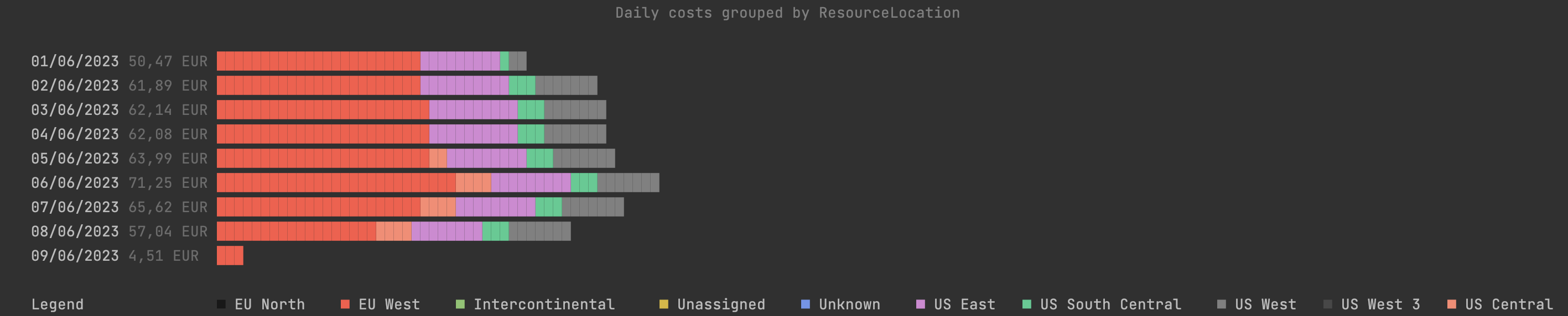
The default dimension is the resource group.
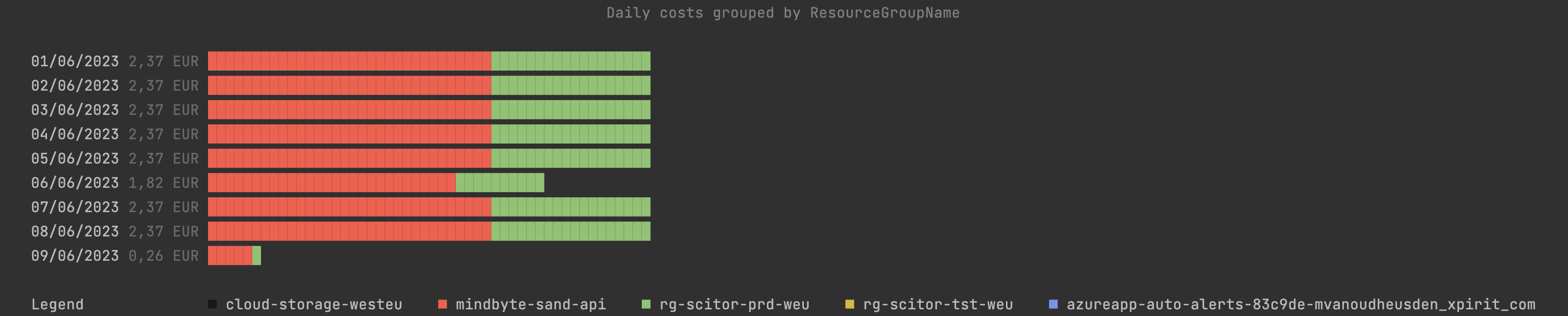
The above screenshots show the default console output, but the other formatters can also be used.
The available dimensions are: ResourceGroup,ResourceGroupName,ResourceLocation,ConsumedService,ResourceType,ResourceId,MeterId,BillingMonth,MeterCategory,MeterSubcategory,Meter,AccountName,DepartmentName,SubscriptionId,SubscriptionName,ServiceName,ServiceTier,EnrollmentAccountName,BillingAccountId,ResourceGuid,BillingPeriod,InvoiceNumber,ChargeType,PublisherType,ReservationId,ReservationName,Frequency,PartNumber,CostAllocationRuleName,MarkupRuleName,PricingModel,BenefitId,BenefitName
This option allows to include the dimensions' Tags in the same row. Tags allow cost analysis customization. Adding the Tags from the dimension allows complementary analysis in tools like Power BI. This option is enabled for DailyCost report and for Json, JsonC, and Csv expor formats. Using other formats, ignores the option.
The following query shows the daily costs for subscription x group by resource group name including the tags for the resource group ready to export to Csv:
azure-cost dailyCosts -s XXXXXXXX-XXXX-XXXX-XXXX-XXXXXXXXXXXX --dimension ResourceGroupName --includeTags -o Csv
That would extend into a column called Tags the resource group tags in Json format:
[""\""cost-center\"":\""my_cost_center\"""",""\""owner\"":\""my_email@email.com\""""]
Note that the Json column should be parsed in the analytical tool.
Based on the daily cost data, this command will try to detect anomalies and trends. It will scan for the following anomalies:
- Cost that is stopped; although it is good that the cost is stopped, it might be an indication that something is wrong.
- Cost that is appearing; the cost was not there before and is now adding to the overall cost.
- A spike in cost; a deviation from the normal cost pattern
- A gradual increase in cost; so a service is growing in cost over time.
There are a number of settings you can use to finetune the detection.
--dimension               ResourceGroupName    The grouping to use. E.g. ResourceGroupName, Meter, ResourceLocation, etc. Defaults to ResourceGroupName
--recent-activity-days    7                    The number of days to use for recent activity. Defaults to 7
--significant-change      0,75                 The significant change in cost to use. Defaults to 0.75 (75%)
--steady-growth-days      7                    The number of days to use for steady growth. Defaults to 7
--threshold-cost          2                    The thresshold cost to use. Values lower than this are excluded. Defaults to 2.00
--exclude-removed-costs   false                Exclude removed costs. Defaults to false.
All the different formatters can be used to output the data, so you can further process it with the JSON or CSV output, send it via email with the text formatter, or use the markdown formatter to include it in a GitHub workflow. The console output will render the different anomalies in different categories and point out the moment in time when the anomaly was detected.
azure-cost detectAnomalies
This will retrieve the available budgets for the subscription. It will show the current status of the budget and the amount of the budget. It now also includes spend tracking information:
- Current Spend: How much has been spent in the current budget period, with percentage of budget used
- Forecast: Projected spend for the budget period, with percentage of budget
- Status: Budget health indicator:
- 🟢 OK — spend is below 80% of budget
- 🟡 AT-RISK — spend is between 80-99% of budget
- 🔴 EXCEEDED — spend has reached or exceeded the budget amount
- Remaining: How much budget remains
As well as listing the configured notifications.
azure-cost budgets -s 574385a9-08e9-49fe-91a2-27660d92b8f5
Output is available in all formats (-o text, -o json, -o markdown, -o csv, -o console).
Retrieve a list of available regions. Besides the location and supported compliances, it will also show the available sustainability information.
Not all the formatters are supported for this command. Let me know if there is a need.
Compare costs between two time periods. There are two modes:
Live comparison (recommended)
Compare two time periods directly by fetching data from the Azure Cost API:
azure-cost diff --source-from 2025-03-01 --source-to 2025-03-31 --from 2025-04-01 --to 2025-04-30
The --source-from and --source-to options define the baseline (source) period. The --from and --to options define the target (current) period. All standard options like -s, -o, --useUSD, and --filter work as expected.
Alternatively, generate a difference between two previously exported cost outputs. Create the json export first using
azure-cost accumulatedCost -o json > filename.json
Save this result, store it in source control etc and create a new snapshot at a later time.
When you have both a source file and a target file, you can use the diff command to show the difference between the two.
azure-cost diff --compare-to new.json --compare-from old.json
This will give an output like:
                                                                                                           Azure Cost Diff
                                                                                                  Source: (01/03/2025 to 20/03/2025)
                                                                                                  Target: (01/03/2025 to 20/03/2025)

╭─Services────────────────────────────────────────────────────╮
│                                                             │
│   Name                 Source      Target      Change       │
│ ─────────────────────────────────────────────────────────── │
│   Microsoft Dev Box    12,27 EUR   22,27 EUR   +10,00 EUR   │
│   Azure Monitor        5,21 EUR    15,21 EUR   +10,00 EUR   │
│   Azure App Service    7,97 EUR    7,97 EUR    +0,00 EUR    │
│   Container Registry   3,07 EUR    3,07 EUR    +0,00 EUR    │
│   Azure DNS            0,30 EUR    2,30 EUR    +2,00 EUR    │
│   Log Analytics        0,29 EUR    0,29 EUR    +0,00 EUR    │
│   Key Vault            0,00 EUR    0,00 EUR    +0,00 EUR    │
│   Storage              0,00 EUR    0,00 EUR    +0,00 EUR    │
│   Bandwidth            0,00 EUR    0,00 EUR    +0,00 EUR    │
│   SUBTOTAL             29,11 EUR   51,11 EUR   +22,00 EUR   │
│                                                             │
╰─────────────────────────────────────────────────────────────╯
╭─Locations─────────────────────────────────────────╮
│                                                   │
│   Name       Source      Target      Change       │
│ ───────────────────────────────────────────────── │
│   EU West    28,81 EUR   48,81 EUR   +20,00 EUR   │
│   Unknown    0,30 EUR    0,30 EUR    +0,00 EUR    │
│   SUBTOTAL   29,11 EUR   49,11 EUR   +20,00 EUR   │
│                                                   │
╰───────────────────────────────────────────────────╯
╭─Resource Groups───────────────────────────────────────────────────╮
│                                                                   │
│   Name                       Source      Target      Change       │
│ ───────────────────────────────────────────────────────────────── │
│   rg-scitor-prd-weu          16,25 EUR   26,25 EUR   +10,00 EUR   │
│   devbox                     12,27 EUR   2,27 EUR    -10,00 EUR   │
│   globaldevopsexperience     0,30 EUR    1,30 EUR    +1,00 EUR    │
│   defaultresourcegroup-weu   0,29 EUR    0,29 EUR    +0,00 EUR    │
│   SUBTOTAL                   29,11 EUR   30,11 EUR   +1,00 EUR    │
│                                                                   │
╰───────────────────────────────────────────────────────────────────╯
╭─Summary─────────────────────────────────────────────╮
│ ╭─────────────┬───────────┬───────────┬───────────╮ │
│ │ Comparison  │ Source    │ Target    │ Change    │ │
│ ├─────────────┼───────────┼───────────┼───────────┤ │
│ │ TOTAL COSTS │ 29,11 EUR │ 32,01 EUR │ +2,9


