K9s - Kubernetes CLI To Manage Your Clusters In Style!
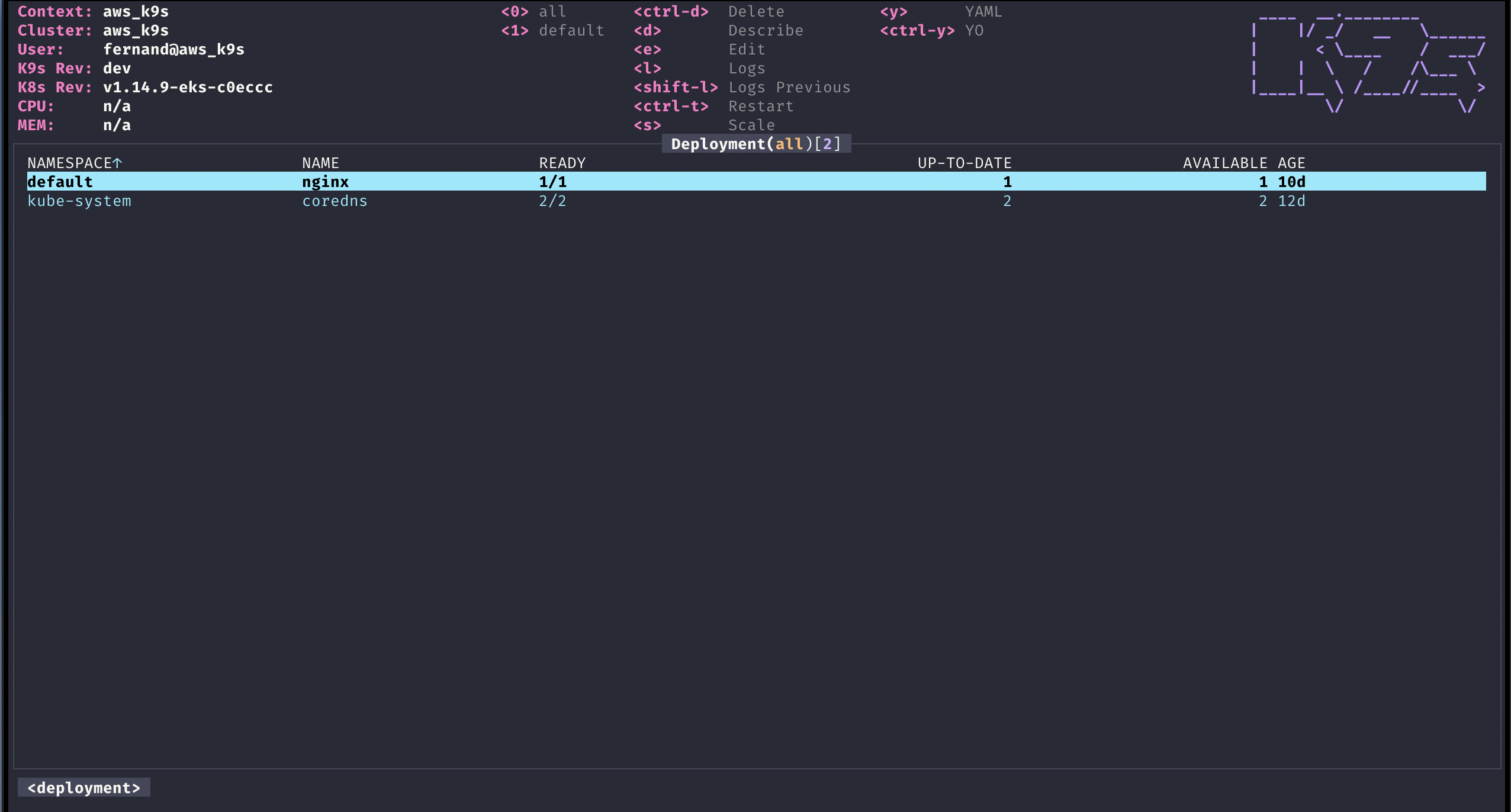
K9s provides a terminal UI to interact with your Kubernetes clusters.
The aim of this project is to make it easier to navigate, observe and manage
your applications in the wild. K9s continually watches Kubernetes
for changes and offers subsequent commands to interact with your observed resources.
K9s is not pimped out by a big corporation with deep pockets.
It is a complex OSS project that demands a lot of my time to maintain and support.
K9s will always remain OSS and therefore free! That said, if you feel k9s makes your day to day Kubernetes journey a tad brighter, saves you time and makes you more productive, please consider sponsoring us!
Your donations will go a long way in keeping our servers lights on and beers in our fridge!
Thank you!




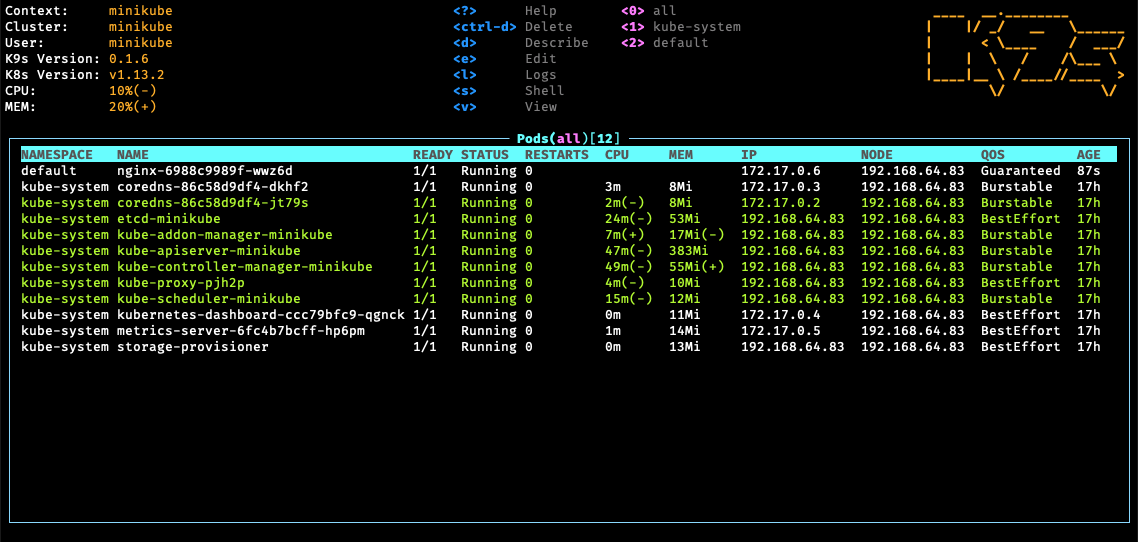
- Pods
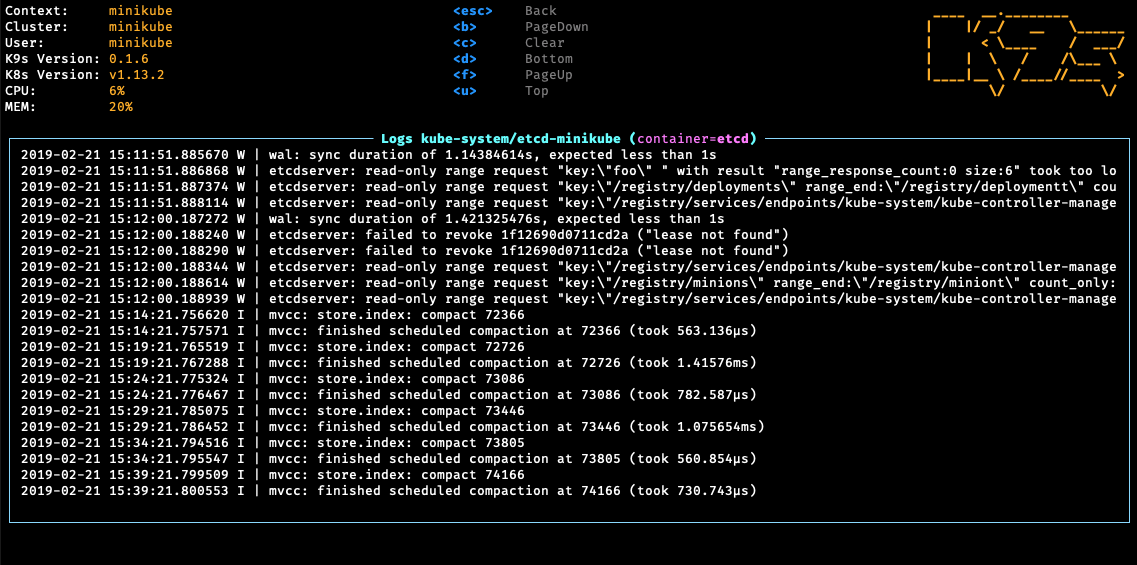
- Logs
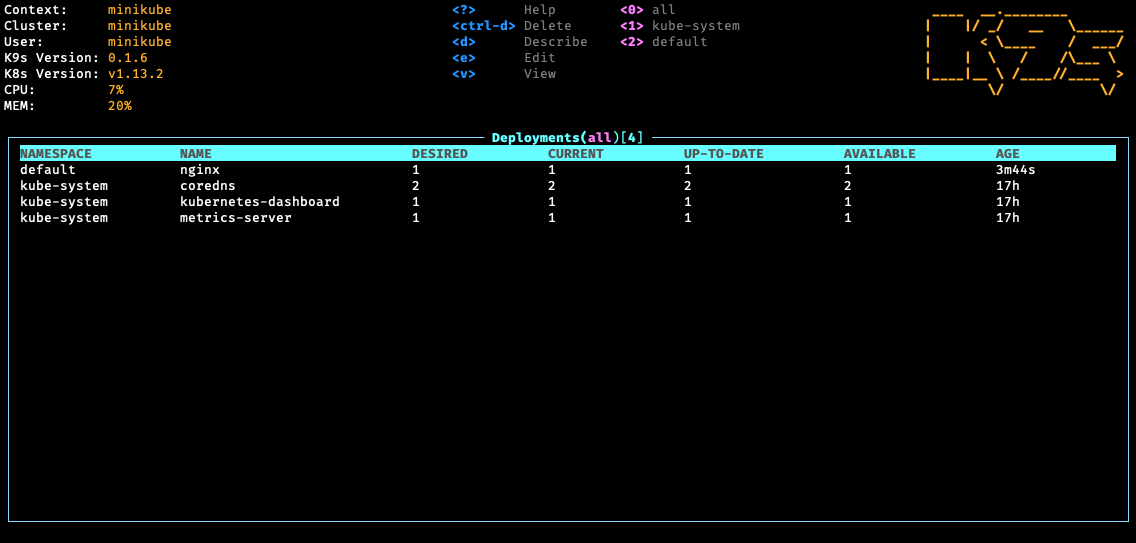
- Deployments
Please refer to our K9s documentation site for installation, usage, customization and tips.
Wanna discuss K9s features with your fellow K9sers or simply show your support for this tool?
K9s is available on Linux, macOS and Windows platforms.
Binaries for Linux, Windows and Mac are available as tarballs in the release page.
-
Via Homebrew for macOS or Linux
brew install derailed/k9s/k9s
-
Via MacPorts
-
Via snap for Linux
snap install k9s --devmode
-
On Arch Linux
-
On OpenSUSE Linux distribution
-
On FreeBSD
-
On Ubuntu
wget https://github.com/derailed/k9s/releases/latest/download/k9s_linux_amd64.deb && sudo apt install ./k9s_linux_amd64.deb && rm k9s_linux_amd64.deb
-
On Fedora (42+)
-
Via Winget for Windows
-
Via Scoop for Windows
-
Via Chocolatey for Windows
-
Via a GO install
# NOTE: The dev version will be in effect!
go install github.com/derailed/k9s@latest
-
Via Webi for Linux and macOS
curl -sS https://webinstall.dev/k9s | bash
-
Via pkgx for Linux and macOS
-
Via gah for Linux and macOS
-
Via Webi for Windows
curl.exe -A MS https://webinstall.dev/k9s | powershell
-
As a Docker Desktop Extension (for the Docker Desktop built in Kubernetes Server)
docker extension install spurin/k9s-dd-extension:latest
K9s is currently using GO v1.23.X or above.
In order to build K9s from source you must:
-
Clone the repo
-
Build and run the executable
make build && ./execs/k9s
Running the official Docker image
You can run k9s as a Docker container by mounting your KUBECONFIG:
docker run --rm -it -v $KUBECONFIG:/root/.kube/config derailed/k9s
For default path it would be:
docker run --rm -it -v ~/.kube/config:/root/.kube/config derailed/k9s
Building your own Docker image
You can build your own Docker image of k9s from the Dockerfile with the following:
docker build -t k9s-docker:v0.0.1 .
You can get the latest stable kubectl version and pass it to the docker build command with the --build-arg option.
You can use the --build-arg option to pass any valid kubectl version (like v1.18.0 or v1.19.1).
KUBECTL_VERSION=$(make kubectl-stable-version 2>/dev/null)
docker build --build-arg KUBECTL_VERSION=${KUBECTL_VERSION} -t k9s-docker:0.1 .
Run your container:
docker run --rm -it -v ~/.kube/config:/root/.kube/config k9s-docker:0.1
Building a multi-platform image
The make imgx target builds for linux/amd64 and linux/arm64 via Docker
buildx:
Cross-architecture builds rely on QEMU emulation. Docker Desktop includes
this out of the box. On a plain Docker Engine install, see the
buildx multi-platform docs
for enabling emulation.
Override the defaults with BUILD_PLATFORMS, IMG_NAME and VERSION:
make imgx BUILD_PLATFORMS=linux/amd64,linux/arm64 IMG_NAME=your-org/k9s VERSION=v0.0.1
-
K9s uses 256 colors terminal mode. On `Nix system make sure TERM is set accordingly.
export TERM=xterm-256color
-
In order to issue resource edit commands make sure your EDITOR and KUBE_EDITOR env vars are set.
# Kubectl edit command will use this env var.
export KUBE_EDITOR=my_fav_editor
-
K9s prefers recent kubernetes versions ie 1.28+
| k9s |
k8s client |
| >= v0.27.0 |
1.26.1 |
| v0.26.7 - v0.26.6 |
1.25.3 |
| v0.26.5 - v0.26.4 |
1.25.1 |
| v0.26.3 - v0.26.1 |
1.24.3 |
| v0.26.0 - v0.25.19 |
1.24.2 |
| v0.25.18 - v0.25.3 |
1.22.3 |
| v0.25.2 - v0.25.0 |
1.22.0 |
| <= v0.24 |
1.21.3 |
# List current version
k9s version

# To get info about K9s runtime (logs, configs, etc..)
k9s info

# List all available CLI options
k9s help

# To run K9s in a given namespace
k9s -n mycoolns

# Start K9s in an existing KubeConfig context
k9s --context coolCtx

# Start K9s in readonly mode - with all cluster modification commands disabled
k9s --readonly
Given the nature of the ui k9s does produce logs to a specific location.
To view the logs and turn on debug mode, use the following commands:
# Find out where the logs are stored
k9s info
 ____  __.________
|    |/ _/   __   \______
|      < \____    /  ___/
|    |  \   /    /\___ \
|____|__ \ /____//____  >
        \/            \/

Version:           vX.Y.Z
Config:            /Users/fernand/.config/k9s/config.yaml
Logs:              /Users/fernand/.local/state/k9s/k9s.log
Dumps dir:         /Users/fernand/.local/state/k9s/screen-dumps
Benchmarks dir:    /Users/fernand/.local/state/k9s/benchmarks
Skins dir:         /Users/fernand/.local/share/k9s/skins
Contexts dir:      /Users/fernand/.local/share/k9s/clusters
Custom views file: /Users/fernand/.local/share/k9s/views.yaml
Plugins file:      /Users/fernand/.local/share/k9s/plugins.yaml
Hotkeys file:      /Users/fernand/.local/share/k9s/hotkeys.yaml
Alias file:        /Users/fernand/.local/share/k9s/aliases.yaml
tail -f /Users/fernand/.local/data/k9s/k9s.log
Customize logs destination
You can override the default log file destination either with the --logFile argument:
k9s --logFile /tmp/k9s.log
less /tmp/k9s.log
Or through the K9S_LOGS_DIR environment variable:
K9S_LOGS_DIR=/var/log k9s
less /var/log/k9s.log
K9s uses aliases to navigate most K8s resources.
| Action |
Command |
Comment |
| Show active keyboard mnemonics and help |
? |
|
| Show all available resource alias |
ctrl-a |
|
| To bail out of K9s |
:quit, :q, ctrl-c |
|
| To go up/back to the previous view |
esc |
If you have crumbs on, this will go to the previous one |
| View a Kubernetes resource using singular/plural or short-name |
:pod⏎ |
accepts singular, plural, short-name or alias ie pod or pods |
| View a Kubernetes resource in a given namespace |
:pod ns-x⏎ |
|
| View filtered pods (New v0.30.0!) |
:pod /fred⏎ |
View all pods filtered by fred |
| View labeled pods (New v0.30.0!) |
:pod app=fred,env=dev⏎ |
View all pods with labels matching app=fred and env=dev |
| View pods in a given context (New v0.30.0!) |
:pod @ctx1⏎ |
View all pods in context ctx1. Switches out your current k9s context! |
| Filter out a resource view given a filter |
/filter⏎ |
Regex2 supported ie `fred |
| Inverse regex filter |
/! filter⏎ |
Keep everything that doesn't match. |
| Filter resource view by labels |
/-l label-selector⏎ |
|
| Fuzzy find a resource given a filter |
/-f filter⏎ |
|
| Bails out of view/command/filter mode |
<esc> |
|
| To view and switch to another Kubernetes context (Pod view) |
:ctx⏎ |
|
| To view and switch directly to another Kubernetes context (Last used view) |
:ctx context-name⏎ |
|
| To view and switch to another Kubernetes namespace |
:ns⏎ |
|
| To switch back to the last active command (like how "cd -" works) |
- |
Navigation that adds breadcrumbs to the bottom are not commands |
| To go back and forward through the command history |
back: [, forward: ] |
Same as above |
| To view all saved resources |
:screendump or sd⏎ |
|
| To delete a resource (TAB and ENTER to confirm) |
ctrl-d |
|
| To kill a resource (no confirmation dialog, equivalent to kubectl delete --now) |
ctrl-k |
|
| Launch pulses view |
:pulses or pu⏎ |
|
| Launch XRay view |
:xray RESOURCE [NAMESPACE]⏎ |
RESOURCE can be one of po, svc, dp, rs, sts, ds, NAMESPACE is optional |
| Launch Popeye view |
:popeye or pop⏎ |
See popeye |
| Mark resource |
space |
|
| Mark range of resources |
ctrl-space |
|
| Clear all marks |
ctrl-\ |
|
| Save resources to file |
ctrl-s |
|
| Toggle faults/error display |
ctrl-z |
|
| Toggle wide columns |
ctrl-w |
|
| Toggle header |
ctrl-e |
|
| Toggle breadcrumbs |
ctrl-g |
|
| Move selected column left |
shift-left arrow |
|
| Move selected column right |
shift-right arrow |
|
| Sort by selected column |
shift-o |
|
| Sort by Name |
shift-n |
|
| Sort by Age |
shift-a |
|
| Sort by Namespace |
shift-p |
Only when viewing all namespaces |
| Sort by Status |
shift-s |
|
| Copy resource name |
c |
|
| Copy namespace |
n |
|
| View YAML |
y |
|
| View logs |
l |
Resource specific |
| View previous logs |
p |
Resource specific |
| Shell into container |
s |
Pods only |
| Attach to container |
a |
Pods only |
| Describe resource |
d |
|
| Edit resource |
e |
Not available in read-only mode |
| Show port-forwards |
f |
Pods/Services/Containers |
| Port forward |
shift-f |
Pods/Services/Containers |
| Warp to namespace |
w |
When namespace column is available |
| Jump to owner |
shift-j |
When resource has an owner |
| Use/switch namespace |
u |
Namespace view |
| UsedBy (show resources using this) |
u |
ServiceAccounts/PVCs/Secrets/ConfigMaps |
| Benchmark (run/stop) |
b |
Services/Port-forwards |
| Toggle text wrap |
w |
Log view |
| Toggle timestamp |
t |
Log view |
| Toggle fullscreen |
f |
Log/YAML/Details view |
| Refresh/reload view |
ctrl-r |
|
| Trigger (CronJob) |
t |
CronJob view |
| Cordon/Uncordon node |
u |
Node view |
| Drain node |
r |
Node view |
| Restart resource |
r |
Deployments/DaemonSets/StatefulSets |
| Rollback resource |
ctrl-l |
ReplicaSets |
| View ReplicaSets |
z |
Deployment view |
K9s keeps its configurations as YAML files inside of a k9s directory and the location depends on your operating system. K9s leverages XDG to load its various configurations files. For information on the default locations for your OS please see this link. If you are still confused a quick k9s info will reveal where k9s is loading its configurations from. Alternatively, you can set K9S_CONFIG_DIR to tell K9s the directory location to pull its configurations from.
| Unix |
macOS |
Windows |
~/.config/k9s |
~/Library/Application Support/k9s |
%LOCALAPPDATA%\k9s |
NOTE: This is still in flux and will change while in pre-release stage!
You can now override the context portForward default address configuration by setting an env variable that can override all clusters portForward local address using K9S_DEFAULT_PF_ADDRESS=a.b.c.d
Clipboard behavior can also be controlled via environment variables:
K9s has integration with Popeye, which is a Kubernetes cluster sanitizer. Popeye itself uses a configuration called spinach.yml, but when integrating with K9s the cluster-specific file should be name $XDG_CONFIG_HOME/share/k9s/clusters/clusterX/contextY/spinach.yml. This allows you to have a different spinach config per cluster.
By enabling the nodeShell feature gate on a given cluster, K9s allows you to shell into your cluster nodes. Once enabled, you will have a new s for shell menu option while in node view. K9s will launch a pod on the selected node using a special k9s_shell pod. Furthermore, you can refine your shell pod by using a custom docker image preloaded with the shell tools you love. By default k9s uses a BusyBox image, but you can configure it as follows:
Alternatively, you can now override the context configuration by setting an env variable that can override all clusters node shell gate using K9S_FEATURE_GATE_NODE_SHELL=true|false
# $XDG_CONFIG_HOME/k9s/config.yaml
k9s:
  # You can also further tune the shell pod specification
  shellPod:
    image: cool_kid_admin:42
    namespace: blee
    limits:
      cpu: 100m
      memory: 100Mi
Then in your cluster configuration file...
# $XDG_DATA_HOME/k9s/clusters/cluster-1/context-1
k9s:
  cluster: cluster-1
  readOnly: false
  namespace:
    active: default
    lockFavorites: false
    favorites:
    - kube-system
    - default
  view:
    active: po
  featureGates:
    nodeShell: true # => Enable this feature gate to make nodeShell available on this cluster
Customizing the Shell Pod
You can also customize the shell pod by adding a hostPathVolume to your shell pod. This allows you to mount a local directory or file into the shell pod. For example, if you want to mount the Docker socket into the shell pod, you can do so as follows:
k9s:
  shellPod:
    hostPathVolume:
    - name: docker-socket
      # Mount the Docker socket into the shell pod
      mountPath: /var/run/docker.sock
      # The path on the host to mount
      hostPath: /var/run/docker.sock
      readOnly: true
This will mount the Docker socket into the shell pod at /var/run/docker.sock and make it read-only. You can also mount any other directory or file in a similar way.
In K9s, you can define your very own command aliases (shortnames) to access your resources. In your $HOME/.config/k9s define a file called aliases.yaml.
A K9s alias defines pairs of alias:gvr. A gvr (Group/Version/Resource) represents a fully qualified Kubernetes resource identifier. Here is an example of an alias file:
#  $XDG_DATA_HOME/k9s/aliases.yaml
aliases:
  pp: v1/pods
  crb: rbac.authorization.k8s.io/v1/clusterrolebindings
  # As of v0.30.0 you can also refer to another command alias...
  fred: pod fred app=blee # => view pods in namespace fred with labels matching app=blee
Using this aliases file, you can now type :pp or :crb or :fred to activate their respective commands.
Entering the command mode and typing a resource name or alias, could be cumbersome for navigating thru often used resources.
We're introducing hotkeys that allow users to define their own key combination to activate their favorite resource views.
Additionally, you can define context specific hotkeys by add a context level configuration file in $XDG_DATA_HOME/k9s/clusters/clusterX/contextY/hotkeys.yaml
In order to surface hotkeys globally please follow these steps:
-
Create a file named $XDG_CONFIG_HOME/k9s/hotkeys.yaml
-
Add the following to your hotkeys.yaml. You can use resource name/short name to specify a command ie same as typing it while in command mode.
#  $XDG_CONFIG_HOME/k9s/hotkeys.yaml
hotKeys:
  # Hitting Shift-0 navigates to your pod view
  shift-0:
    shortCut:    Shift-0
    description: Viewing pods
    command:     pods
  # Hitting Shift-1 navigates to your deployments
  shift-1:
    shortCut:    Shift-1
    description: View deployments
    command:     dp
  # Hitting Shift-2 navigates to your xray deployments
  shift-2:
    shortCut:    Shift-2
    description: Xray Deployments
    command:     xray deploy
  # Hitting Shift-S view the resources in the namespace of your current selection
  shift-s:
    shortCut:    Shift-S
    override:    true # => will override the default shortcut related action if set to true (default to false)
    description: Namespaced resources
    command:     "$RESOURCE_NAME $NAMESPACE"
    keepHistory: true # whether you can return to the previous view
Not feeling so hot? Your custom hotkeys will be listed in the help view ?.
Also your hotkeys file will be automatically reloaded so you can readily use your hotkeys as you define them.
You can choose any keyboard shortcuts that make sense to you, provided they are not part of the standard K9s shortcuts list.
Similarly, referencing environment variables in hotkeys is also supported. The available environment variables can refer to the description in the Plugins section.
NOTE: This feature/configuration might change in future releases!
Port Forwarding over websockets
K9s follows kubectl feature flag environment variables to enable/disable port-forwarding over websockets. (default enabled in >1.30)
To disable Websocket support, set KUBECTL_PORT_FORWARD_WEBSOCKETS=false
As of v0.25.0, you can leverage the FastForwards feature to tell K9s how to default port-forwards. In situations where you are dealing with multiple containers or containers exposing multiple ports, it can be cumbersome to specify the desired port-forward from the dialog as in most cases, you already know which container/port tuple you desire. For these use cases, you can now annotate your manifests with the following annotations:
@ k9scli.io/auto-port-forwards
activates one or more port-forwards directly bypassing the port-forward dialog all together.
@ k9scli.io/port-forwards
pre-selects one or more port-forwards when launching the port-forward dialog.
The annotation value takes on the shape container-name::[local-port:]container-port
NOTE: for either cases above you can specify the container port by name or number in your annotation!
# Pod fred
apiVersion: v1
kind: Pod
metadata:
  name: fred
  annotations:
    k9scli.io/auto-port-forwards: zorg::5556        # => will default to container zorg port 5556 and local port 5566. No port-forward dialog will be shown.
    # Or...
    k9scli.io/port-forwards: bozo::9090:p1          # => launches the port-forward dialog selecting default port-forward on container bozo port named p1(8081)
                                                    # mapping to local port 9090.
    ...
spec:
  containers:
  - name: zorg
    ports:
    - name: p1
      containerPort: 5556
    ...
  - name: bozo
    ports:
    - name: p1
      containerPort: 8081
    - name: p2
      containerPort: 5555
    ...
The annotation value must specify a container to forward to as well as a local port and container port. The container port may be specified as either a port number or port name. If the local port is omitted then the local port will default to the container port number. Here are a few examples:
- bozo::http - creates a pf on container
bozo with port name http. If http specifies port number 8080 then the local port will be 8080 as well.
- bozo::9090:http - creates a pf on container
bozo mapping local port 9090->http(8080)
- bozo::9090:8080 - creates a pf on container
bozo mapping local port 9090->8080
SneakCast v0.17.0 on The Beach! - Yup! sound is sucking but what a setting!
You can change which columns shows up for a given resource via custom views. To surface this feature, you will need to create a new configuration file, namely $XDG_CONFIG_HOME/k9s/views.yaml. This file leverages GVR (Group/Version/Resource) to configure the associated table view columns. If no GVR is found for a view the default rendering will take over (ie what we have now). Going wide will add all the remaining columns that are available on the given resource after your custom columns. To boot, you can edit your views config file and tune your resources views live!
Use version/resource for resources in the core API group and
group/version/resource for resources in a named API group. For example,
pods use v1/pods, while mutating webhook configurations use
admissionregistration.k8s.io/v1/mutatingwebhookconfigurations.
📢 🎉 As of release v0.40.0 you can specify json parse expressions to further customize your resources rendering.
The new column syntax is as follows:
COLUMN_NAME<:json_parse_expression><|column_attributes>
Where :json_parse_expression represents an expression to pull a specific snippet out of the resource manifest.
Similar to kubectl -o custom-columns command. This expression is optional.
IMPORTANT! Columns must be valid YAML strings. Thus if your column definition contains non-alpha chars
they must figure with either single/double quotes or escaped via \
NOTE! Be sure to watch k9s logs as any issues with the custom views specification are only surfaced in the logs.
Additionally, you can specify column attributes to further tailor the column rendering.
To use this you will need to add a | indicator followed by your rendering bits.
You can have one or more of the following attributes:
T -> time column indicatorN -> number column indicatorW -> turns on wide column aka only shows while in wide mode. Defaults to the standard resource definition when present.S -> Ensures a column is visible and not wide. Overrides wide std resource definition if present.H -> Hides the columnL -> Left align (default)R -> Right align
Here is a sample views configuration that customize a pods and services views.
# $XDG_CONFIG_HOME/k9s/views.yaml
views:
  v1/pods:
    columns:
      - AGE
      - NAMESPACE|WR                                     # => 🌚 Specifies the NAMESPACE column to be right aligned and only visible while in wide mode
      - ZORG:.metadata.labels.fred\.io\.kubernetes\.blee # => 🌚 extract fred.io.kubernetes.blee label into it's own column
      - BLEE:.metadata.annotations.blee|R                # => 🌚 extract annotation blee into it's own column and right align it
      - NAME
      - IP
      - NODE
      - STATUS
      - READY
      - MEM/RL|S                                         # => 🌚 Overrides std resource default wide attribute via `S` for `Show`
      - '%MEM/R|'                                        # => NOTE! column names with non alpha names need to be quoted as columns must be strings!

  v1/pods@fred:                                          # => 🌚 New v0.40.6! Customize columns for a given resource and namespace!
    columns:
      - AGE
      - NAME|WR

  v1/pods@kube*:                                         # => 🌚 New v0.40.6! You can also specify a namespace using a regular expression.
    columns:
      - NAME
      - AGE
      - LABELS

  cool-kid:                                              # => 🌚 New v0.40.8! You can also reference a specific alias and display a custom view for it
    columns:
      - AGE
      - NAMESPACE|WR

  v1/services:
    columns:
      - AGE
      - NAMESPACE
      - NAME
      - TYPE
      - CLUSTER-IP

  admissionregistration.k8s.io/v1/mutatingwebhookconfigurations:
    columns:
      - NAME
      - WEBHOOKS|N
      - AGE
      - POLICY:.webhooks[*].failurePolicy
      - TIMEOUT:.webhooks[*].timeoutSeconds|N
🩻 NOTE: This is experimental and will most likely change as we iron this out!
K9s allows you to define custom jump shortcuts between Custom Resource Definitions (CRDs) and their related resources. This feature enables you to quickly jump from one CRD to its dependent or associated resources, similar to the built-in "jump to owner" behavior.
By default, K9s provides built-in jumps for standard Kubernetes resources (e.g., Deployment → Pods, Node → Pods). With custom jumps, you can extend this behavior to your own CRDs without modifying k9s source code.
To use this feature, create a configuration file at $XDG_CONFIG_HOME/k9s/jumps.yaml.
# $XDG_CONFIG_HOME/k9s/jumps.yaml
jumps:
  # Define jump from source GVR to target GVR
  "myoperator.io/v1/patchplans":
    targetGVR: "myoperator.io/v1/patchjobs"
    fieldSelector: "spec.patchPlanRef={{.metadata.name}}"
- Source GVR (map key): The Group/Version/Resource of the source CRD in format
group/version/resource or version/resource for core resources
- targetGVR: The target resource to jump to
- labelSelector (optional): Kubernetes label selector to filter target resources. Supports Go template syntax
- fieldSelector (optional): Kubernetes field selector to filter target resources. Supports Go template syntax
- targetNamespace (optional): Controls namespace behavior:
- Empty (default): Use the source resource's namespace (or cluster-scoped if source is cluster-scoped)
all: View resources across all namespaces<namespace-name>: Jump to a specific namespace{{.spec.field}}: Use template expression to extract namespace from source resource
Both labelSelector and fieldSelector support Go template syntax to dynamically reference fields from the selected (source) resource. Any field of the source object can be used on the value side of a selector:
{{.metadata.name}} - The resource name{{.metadata.namespace}} - The resource namespace{{.metadata.labels.key}} - A specific label value{{.spec.fieldName}} - Any field from the source resource spec{{.status.field}} - Any field from the source resource status
Note: The template above only controls the selector value (the right-hand side, computed from the source resource). For label selectors, the key can be any label and is matched server side. For field selectors, k9s applies the selector as a local (client-side) filter on the target resources, so the key may be any field path present in the target object (e.g. metadata.name, spec.volumeName), not just the API-se