
Frictionless Local Postgres with Docker Compose
Steps to try out the sample.
- checkout the code
- run postgres and pgAdmin using
docker compose up
- Using a browser go to
localhost:15433 and explore the pgAdmin console. There should be two
databases demo1 and demo2. pgAdmin will not ask for any passwords.
- run the spring boot sample application with
./mvnw spring-boot:run you will need Java 25 JDK
installed for this command to work. If you are only interested in the postgres docker-compose
configuration you can skip this step.
Check out my blog adibsaikali.com for a nice directory of other samples
and technical posts. Full details of how the sample works below.
PostgresSQL is a very powerful open source database that is available everywhere from
laptops to cloud providers. I have been using postgres for decades starting
in 1998. There are two distinct ways that I use postgres on my dev workstation.
- ephemeral mode to execute automated tests
- persistent mode during development and manual testing
For automated integration testing I rely on the test containers
project to automatically launch a fresh postgres database for each junit test. This makes tests
reproducible, relatively quick and painless to write. While tests are executing I don't need to
interact with the postgres server the tests are running against.
As I write code and manually interact with the application I am working on I want inspect the
postgres database the application is talking to. For many years I got away with installing a
local PostgresSQL on my dev machine. Everytime a new developer joins the project they have to
install PostgreSQL on their workstation, then run a script to create the development database.
If the developer is working on two different applications that use different versions of PostgreSQL
then local workstation setup gets more complicated. Docker compose can significantly reduce local
development environment setup friction.
This repo provides a frictionless Docker Compose configuration for pgAdmin and PostgreSQL
with pre-configured connectivity and passwords. The sections below explain how each part
of the configuration works.
Docker Compose Configuration
PgAdmin 4 is the graphical interface for working with Postgres, it is
a single page JavaScript web application with a python backend. The diagram below shows the
relationship between the various applications, containers, virtual machines running on a typical
Docker desktop installed on MacOS or Windows.
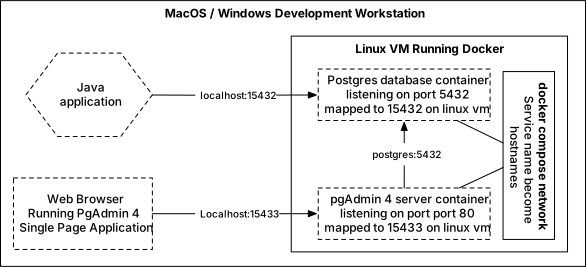
On a Linux workstation there is no need for a virtual machine since the docker daemon can run
natively. The port numbers on the diagram are the same for Docker on Linux.
Volumes, Configs, and Network
We will break down the compose.yaml into parts and explain how
each part works.
volumes:
    postgres:
    pgadmin:
The above section defines
two volumes. The postgres volume will be used by the container running postgres, this means
that the state of the postgres database will survive restarts of the container. Similarly,
the pgadmin volume will be used by the pgAdmin container to store its configuration
settings across container restarts.
Docker Compose v2.23.1+ supports inline config files using the top-level configs section
with a content field. This lets you define small configuration files directly inside
compose.yaml instead of maintaining separate files on disk. Compose mounts the
content as a read-only file inside the container at the path specified by target.
configs:
  postgres_init:
    content: |
      CREATE DATABASE demo2;
      \c demo2
      CREATE EXTENSION vector;
  pgadmin_servers:
    content: |
      {
        "Servers": {
          "1": {
            "Name": "Docker Compose",
            "Group": "Servers",
            "Port": 5432,
            "Username": "postgres",
            "Host": "postgres",
            "SSLMode": "prefer",
            "MaintenanceDB": "postgres",
            "PassFile": "/tmp/pgpassfile"
          }
        }
      }
The postgres_init config contains the SQL script that creates the demo2 database.
The pgadmin_servers config contains the pgAdmin server connection definition. Both are
mounted into their respective containers using the configs section on each service.
Docker compose will automatically create a single network that all the containers will be connected
to and register them in DNS using the docker compose service name. This means that the pgAdmin
container can find the postgres server using its docker-compose service name which is postgres.
Docker compose derives the network name from the directory name containing the
compose.yaml file. In this example the network name is docker-compose-postgres_default.
The compose.yaml contains a service named postgres defined below.
services:
  postgres:
    labels:
      org.springframework.boot.service-connection: postgres
    # image: "postgres:18"
    image: "pgvector/pgvector:pg18"
    shm_size: 256mb
    environment:
      POSTGRES_USER: "postgres"
      POSTGRES_PASSWORD: "password"
      POSTGRES_DB: "demo1"
      PGDATA: "/data/postgres"
    configs:
      - source: postgres_init
        target: /docker-entrypoint-initdb.d/docker_postgres_init.sql
    volumes:
      - postgres:/data/postgres
    ports:
      - "${PG_PORT:-15432}:5432"
restart: unless-stoppedThis repo uses the pgvector image
(pgvector/pgvector:pg18) instead of the standard postgres:18 image. The pgvector image
is built on top of the official PostgreSQL image — it's fully compatible with the same
environment variables, init scripts, and volume mounts — but includes the pgvector extension
pre-installed. pgvector adds vector similarity search to PostgreSQL, which is useful for
AI/ML applications that work with embeddings.
The extension is enabled in the demo2 database via the init script:
CREATE DATABASE demo2;
\c demo2
CREATE EXTENSION vector;
The demo1 database does not have pgvector enabled, keeping it as a standard PostgreSQL
database for the Spring Boot sample application.
To switch back to standard PostgreSQL without pgvector, swap the image lines in
compose.yaml:
image: "postgres:18"
# image: "pgvector/pgvector:pg18"
In order to make the environment reproducible and predictable we explicitly set
the postgres container version rather than using postgres:latest or postgres
which would lead to unpredictability since we would get whatever is the latest version of
postgres at the time we run docker compose up.
To configure the administrative user for the database we set the POSTGRES_USER and
POSTGRES_PASSWORD environment variables.
Postgres database files are stored in /data/postgres.
This directory is mapped to postgres volume via the mapping postgres:/data/postgres.
Docker containers default to 64MB of /dev/shm (shared memory). PostgreSQL relies on shared
memory for shared_buffers (default 128MB), locks, and parallel query coordination. When
PostgreSQL's shared memory usage exceeds the container's /dev/shm limit, you get the
cryptic error ERROR: could not resize shared memory segment: No space left on device
which has nothing to do with disk space.
Setting shm_size: 256mb raises this limit to comfortably cover the default shared_buffers
with headroom for other shared memory usage. This is a Docker setting, not a PostgreSQL one —
it controls the size of the tmpfs mount at /dev/shm inside the container. Since tmpfs only
consumes physical RAM for data actually written, this does not pre-allocate 256MB — it simply
sets the upper limit.
The postgres Docker image provides two ways to create databases on first startup. This
repo demonstrates both approaches.
Using the POSTGRES_DB Environment Variable
The simplest way to create a database is to set the POSTGRES_DB environment variable.
The postgres container will automatically create a database with this name on first startup.
In this repo we use it to create the demo1 database which is the primary database used
by the Spring Boot application.
environment:
  POSTGRES_DB: "demo1"
Using Initialization Scripts
For additional databases beyond the one created by POSTGRES_DB, the postgres container
will execute any *.sql, *.sql.gz, or *.sh scripts found in
/docker-entrypoint-initdb.d/ during first startup.
In this repo we use the postgres_init inline config to create a second database called
demo2. The config is mounted into the container at the path where postgres looks for
init scripts:
configs:
  - source: postgres_init
    target: /docker-entrypoint-initdb.d/docker_postgres_init.sql
Note: Initialization scripts are only run when the container starts with an empty data
directory. If you need to re-run them, remove the postgres volume first with ./pg clean.
In order to make the postgres database running inside the docker container accessible to
applications on the workstation we map the default postgres port 5432 to
15432 as shown by the docker-compose configuration below.
ports:
  - "${PG_PORT:-15432}:5432"
When a developer checks out the git repo with the application source code in it we want
them to be able to run docker compose up and have that work, this is why we expose
port 15432 since the workstation might already have postgres installed and listening
on the default port 5432. Our hope is that port 15432 is available on the developer's
workstation. The port can be customized using the PG_PORT environment variable.
To set up the pgAdmin container we use the following service in the docker-compose file
pgadmin:
  labels:
    org.springframework.boot.ignore: true
  image: "dpage/pgadmin4:9.13"
  environment:
    PGADMIN_DEFAULT_EMAIL: "admin@example.com"
    PGADMIN_DEFAULT_PASSWORD: "admin"
    PGADMIN_CONFIG_SERVER_MODE: "False"
    PGADMIN_CONFIG_MASTER_PASSWORD_REQUIRED: "False"
    PGADMIN_REPLACE_SERVERS_ON_STARTUP: "True"
    PGADMIN_CONFIG_CONSOLE_LOG_LEVEL: 30
    GUNICORN_ACCESS_LOGFILE: "/var/lib/pgadmin/access.log"
  configs:
    - source: pgadmin_servers
      target: /pgadmin4/servers.json
  volumes:
    - pgadmin:/var/lib/pgadmin
  ports:
    - "${PGADMIN_PORT:-15433}:80"
  entrypoint:
    - "/bin/sh"
    - "-c"
    - "/bin/echo 'postgres:5432:*:postgres:password' > /tmp/pgpassfile && chmod 600 /tmp/pgpassfile && /entrypoint.sh"
  restart: unless-stopped
In order to have a repeatable build we use a specific version of the pgAdmin container
dpage/pgadmin4:9.13. The dpage namespace belongs to Dave Page, the lead developer and
maintainer of the pgAdmin project — this is the official container image for pgAdmin.
pgAdmin can run in one of two modes desktop mode or server mode. When running in
desktop mode pgAdmin assumes that it can only be reached from a developer's workstation
and thus it will not require authentication to access the pgAdmin user interface.
In server mode pgAdmin assumes that it is accessible to anyone on the network therefore
it will require users to log in.
Since we are running pgAdmin on developer workstation accessible only on localhost we want to
skip pgAdmin authentication. Therefore, we run pgAdmin in desktop mode by setting the
environment variable PGADMIN_CONFIG_SERVER_MODE: "False".
Even though pgAdmin is running in desktop mode we still need to set up an admin
username and password using the environment variables below.
environment:
  PGADMIN_DEFAULT_EMAIL: "admin@example.com"
  PGADMIN_DEFAULT_PASSWORD: "admin"
pgAdmin is a generic console it can connect to multiple postgres servers. Therefore, it stores
the details of databases to connect to such as hostname, port number, user name, passwords
in pgAdmin. Since these credentials are sensitive it encrypts them with a master password
that must be entered by the user everytime they use pgAdmin. Since we are running pgAdmin to
administer the single local development server running in docker we can disable the master password
with the environment variable PGADMIN_CONFIG_MASTER_PASSWORD_REQUIRED: "False".
Normal behaviour of pgAdmin is for a user to use the GUI to define a connection to a database as
shown below.
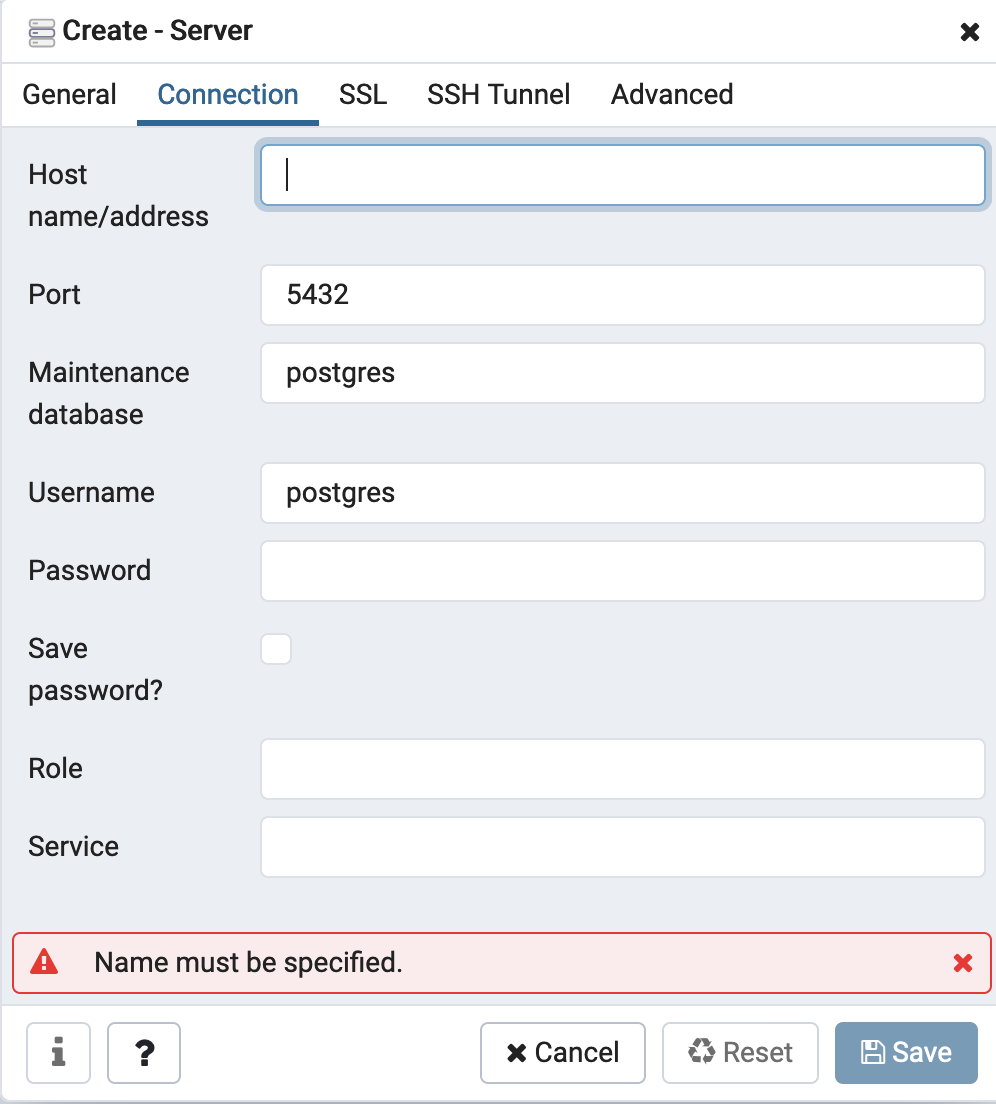
To avoid having to enter the connection settings we define the connection details using an
inline config in compose.yaml that pgAdmin will import into its configuration.
Setting PGADMIN_REPLACE_SERVERS_ON_STARTUP: "True" ensures the server definitions are
reloaded on every container restart, not just the first launch.
The server connection JSON is defined in the pgadmin_servers inline config (shown in the
configs section above). The pgAdmin container looks for this file at /pgadmin4/servers.json,
so we mount the config there:
configs:
  - source: pgadmin_servers
    target: /pgadmin4/servers.json
In order for pgAdmin to store its state across container restarts we map the location
it stores state /var/lib/pgadmin to the docker volume pgadmin as shown in the yaml
below.
volumes:
 - pgadmin:/var/lib/pgadmin
pgAdmin provides no mechanism to set passwords for the connections in servers.json since
database passwords are sensitive and therefore should not be stored locally. This is a
very good policy on pgAdmin's part but given our goal of being able to just land directly
in the UI we have to override the pgAdmin container entrypoint as shown below.
entrypoint:
  - "/bin/sh"
  - "-c"
  - "/bin/echo 'postgres:5432:*:postgres:password' > /tmp/pgpassfile && chmod 600 /tmp/pgpassfile && /entrypoint.sh"
Docker executes an entrypoint via exec() function call without any shell expansion.
A docker entry point is an array of strings the first is the name of the executable
to run followed by the parameters to pass to the executable. To make formatting easier in the
docker-compose file I used the list form as show in the code snippet above.
If we remove the yaml and docker entrypoint formatting the command executed is the one below.
/bin/sh -c /bin/echo 'postgres:5432:*:postgres:password' > /tmp/pgpassfile && chmod 600 /tmp/pgpassfile && /entrypoint.sh
/bin/sh -c is used to execute the shell with input from the command line rather than from a file.
The && is used to chain a series of separate commands on a single line. If any command fails
subsequent commands will not be executed. With these advanced shell features explained we can
breakdown the command into individual steps.
/bin/echo 'postgres:5432:*:postgres:password' > /tmp/pgpassfile
The command above will write a postgres password file to /tmp/pgpassfile which is referenced
in the servers.json
{
    "Servers": {
      "1": {
        "PassFile": "/tmp/pgpassfile"
      }
    }
  }
A postgres password file has the format hostname:port:database:username:password with
the ability to use * a wild card match on the first 4 fields. So we write
postgres:5432:*:postgres:password into the /tmp/pgpassfile notice that we use
* for the database portion this means that for all databases pgAdmin will try to use
postgres as the username and password as the password.
For security reasons pgAdmin will ignore any password files that are not locked down with
unix permissions of 600. Therefore, the next command we execute is chmod 600 /tmp/pgpassfile
With the password file written with the correct unix permission we launch the pgAdmin container
entry point by calling /entrypoint.sh which on startup will find password file and server
connections that point to the postgres we launched in docker. The net result is that you can
just click around the pgAdmin UI, and you will not have to set up any connections or passwords.
This repository includes a convenient shell script called pg that simplifies the management of PostgreSQL and pgAdmin containers. The script provides a simple command-line interface to start, stop, and manage the Docker Compose setup.
./pg start: Start PostgreSQL and pgAdmin containers in detached mode./pg status: Display container status and connection information (including JDBC URL and psql command)./pg stop: Stop the running containers./pg clean: Stop containers and remove all associated volumes (data cleanup)./pg fix: Detect and resolve port conflicts automatically
Start the containers:
Check the status and get connection information:
Stop the containers:
If you encounter port conflicts (e.g., ports 15432 or 15433 are already in use), you can use:
The script will automatically detect containers using these ports and stop them.
You can customize the ports used by setting environment variables before running the script:
PG_PORT: PostgreSQL port (default: 15432)PGADMIN_PORT: pgAdmin port (default: 15433)
Example:
PG_PORT=25434 PGADMIN_PORT=25435 ./pg start
PG_PORT=25434 PGADMIN_PORT=25435 ./pg status
PG_PORT=25434 PGADMIN_PORT=25435 ./pg stop
The sample Spring Boot application demonstrates how to use the Docker Compose setup with
a real application. It provides a simple REST API that serves quotes from the database.
Running the application with the command ./mvnw spring-boot:run and making a request
to localhost:8080/ should return a random quote similar to the one below
{
    "author": "Vincent Lombardi",
    "id": 4,
    "quote": "Success demands singleness of purpose"
}Spring Boot 3.1 introduced built-in Docker Compose support via the spring-boot-docker-compose
dependency. When you run ./mvnw spring-boot:run, Spring Boot automatically:
- Detects the
compose.yaml in the project directory
- Starts the containers if they aren't already running
- Reads each container's labels, ports, and environment variables
- Auto-configures connection details (datasource URL, username, password, database name)
- Stops the containers when the application shuts down
This means no datasource configuration is needed in application.yml. Spring Boot
derives everything from the running container. The key that makes this work is the
org.springframework.boot.service-connection label on the postgres service:
services:
  postgres:
    labels:
      org.springframework.boot.service-connection: postgres
This label tells Spring Boot that this container provides a PostgreSQL service connection.
Spring Boot reads the container's mapped port (which may vary if PG_PORT is customized)
and the POSTGRES_USER, POSTGRES_PASSWORD, and POSTGRES_DB environment variables to
configure the datasource automatically. Changing these values in compose.yaml is
the only step needed — no application.yml changes required.
The pgadmin service has a different label to opt out of this auto-configuration:
services:
  pgadmin:
    labels:
      org.springframework.boot.ignore: true
The application.yml controls the Docker Compose lifecycle behavior:
spring:
  docker:
    compose:
      lifecycle-management: start-and-stop
      start:
        command: up
      stop:
        command: down
        timeout: 1m
With start-and-stop, Spring Boot starts the containers when the application starts and
stops them when it shuts down. This is convenient for development — just run
./mvnw spring-boot:run and everything is managed for you.
Before Spring Boot 3.1, developers had to manually configure the datasource URL, username,
and password in application.yml and ensure the containers were already running before
starting the application. The Docker Compose support eliminates this manual coordination.
The sample application uses Flyway DB to manage the database schema.
You can find the DDL in the file src/main/resources/db/migration/V1__create_quotes_table.sql.
Testcontainers launches a fresh PostgreSQL container for
each test run, making tests reproducible without any external database setup.
Evolution of Testcontainers Support in Spring Boot
Spring Boot's Testcontainers integration has evolved significantly over time:
Before Spring Boot 3.1 — there were two approaches, both requiring manual wiring:
-
JDBC URL trick — a specially formatted URL like jdbc:tc:postgresql:15:///demo1
in application.yml that Testcontainers intercepts to spin up a container. Simple but
opaque, and the postgres version is buried in a config file.
-
@DynamicPropertySource — using the @Testcontainers JUnit extension with
@Container fields and manually setting Spring properties from the container:
@DynamicPropertySource
static void properties(DynamicPropertyRegistry registry) {
    registry.add("spring.datasource.url", postgres::getJdbcUrl);
    registry.add("spring.datasource.username", postgres::getUsername);
    registry.add("spring.datasource.password", postgres::getPassword);
}
Verbose and error-prone — every test class needed the same boilerplate.
Spring Boot 3.1 (May 2023) — introduced three new features:
-
@ServiceConnection — auto-configures connection details from a container. No manual
property wiring needed.
-
Container @Bean methods — declare containers as Spring beans in a @TestConfiguration.
Spring manages the lifecycle, ensuring containers start before dependent beans and stop
after them.
-
@ImportTestcontainers — for sharing container definitions via interfaces instead
of inheritance.
Recommended Approach: @Bean + @ServiceConnection
This repo uses the Spring team's recommended approach. The container is declared as a
Spring bean with @ServiceConnection in a @TestConfiguration class:
@TestConfiguration(proxyBeanMethods = false)
class TestDatabaseConfig {

    @Bean
    @ServiceConnection
    PostgreSQLContainer<?> postgres() {
        return new PostgreSQLContainer<>("postgres:18");
    }
}
Test classes import this configuration:
@SpringBootTest
@Import(TestDatabaseConfig.class)
class DemoApplicationTests {

    @Autowired
    private QuoteRepository quoteRepository;

    @Test
    @DisplayName("Database has 5 quotes")
    void databaseHas5Quotes() {
        Assertions.assertThat(this.quoteRepository.findAll()).hasSize(5);
    }
}
This approach is preferred over the JUnit @Container field approach because Spring
controls the container lifecycle — it starts the container before dependent beans initialize
and stops it after they are destroyed. With the JUnit approach, the container may shut down
before Spring destroys beans that still hold database connections, causing errors during
cleanup.
No test application.yml is needed — @ServiceConnection handles everything. Multiple
test classes sharing the same @Import reuse a single Spring application context (and
therefore a single container), keeping the test suite fast.
Using docker compose up to launch PostgreSQL and pgAdmin simplifies local development
environment configuration. Combined with Spring Boot's Docker Compose support, the entire
datasource configuration is derived automatically from the running containers.


